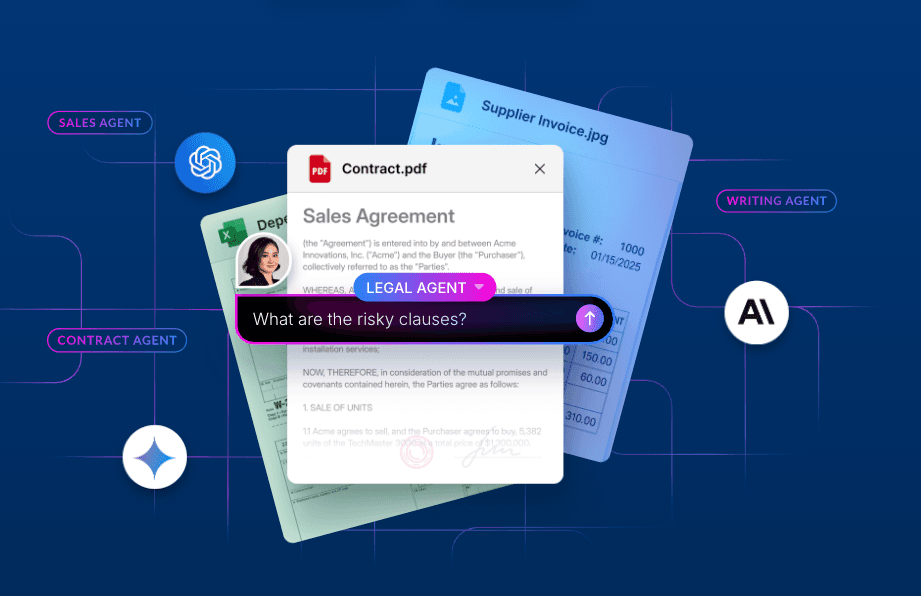
AI can help organizations achieve more when it’s connected to the content teams use — and when businesses can set clear rules for that access. The latest updates to Box Model Context Protocol (MCP) server make it easier to connect AI agents and applications to Box, work with Box content from AI tools, and manage what those tools can do.
From simpler client connections and Box integrations for ChatGPT and Claude to write-action guardrails, configurable tool access, domain verification, and expanded reporting, these updates help organizations bring AI into everyday work with Box controls in place. Here’s what’s new.
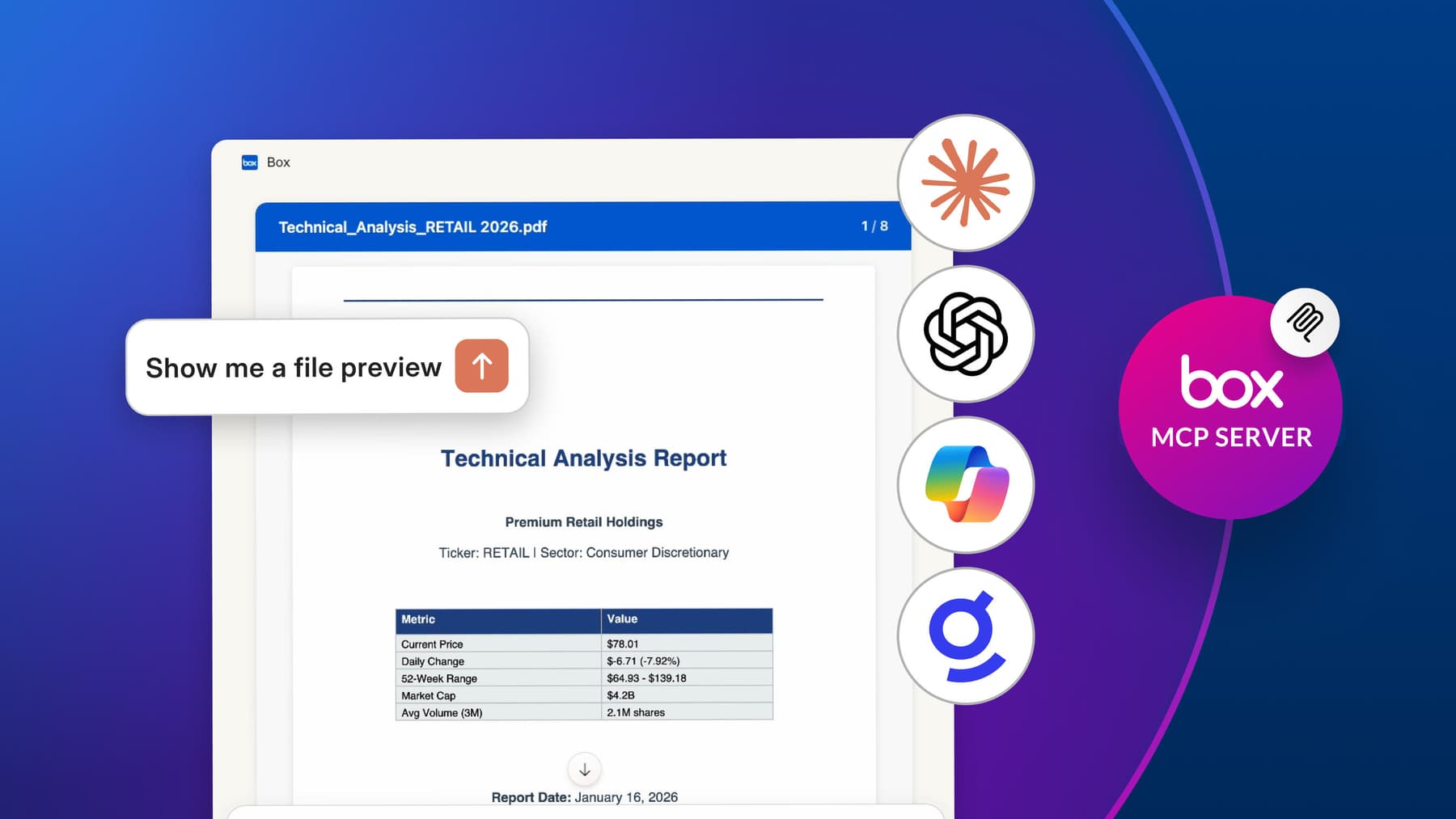
Connect AI clients to Box with less friction
Expanded support for MCP
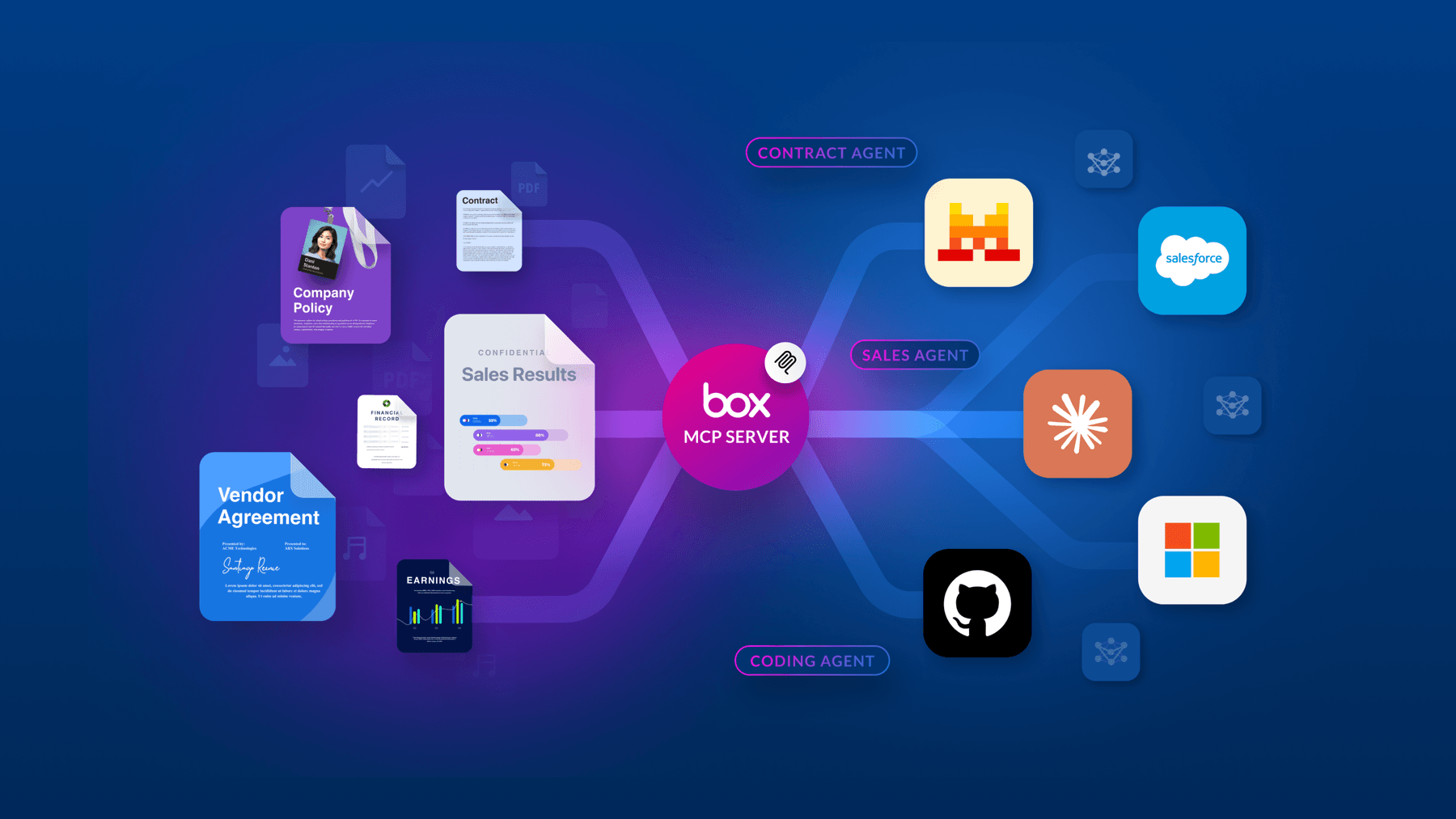
Box is expanding MCP connectivity. For popular desktop AI tools and developer environments — such as Cursor and Claude Code — as well as custom agents, this eliminates setup friction. Users can connect directly through a standard browser sign-in without manually creating developer apps or managing API secrets. All requests to Box execute securely under the user’s identity and permissions.
Dedicated MCP scopes
Coming soon, Box is introducing a new MCP scope To further streamline configuration. This will allow developers to easily designate whether an application is built for MCP, standard Box APIs, or both, while bundling all the necessary permissions required for the Box MCP server to operate seamlessly.
Set clear boundaries for AI access
As AI tools gain the ability to write and manage content, organizations need ways to define what those tools can do. Box updates give administrators more options to configure access and apply policies to supported actions.
Apply guardrails to MCP write actions
For Enterprise Advanced customers, Box MCP Guardrails for the MCP server use the Box Action Platform to evaluate supported write operations against configured policies.
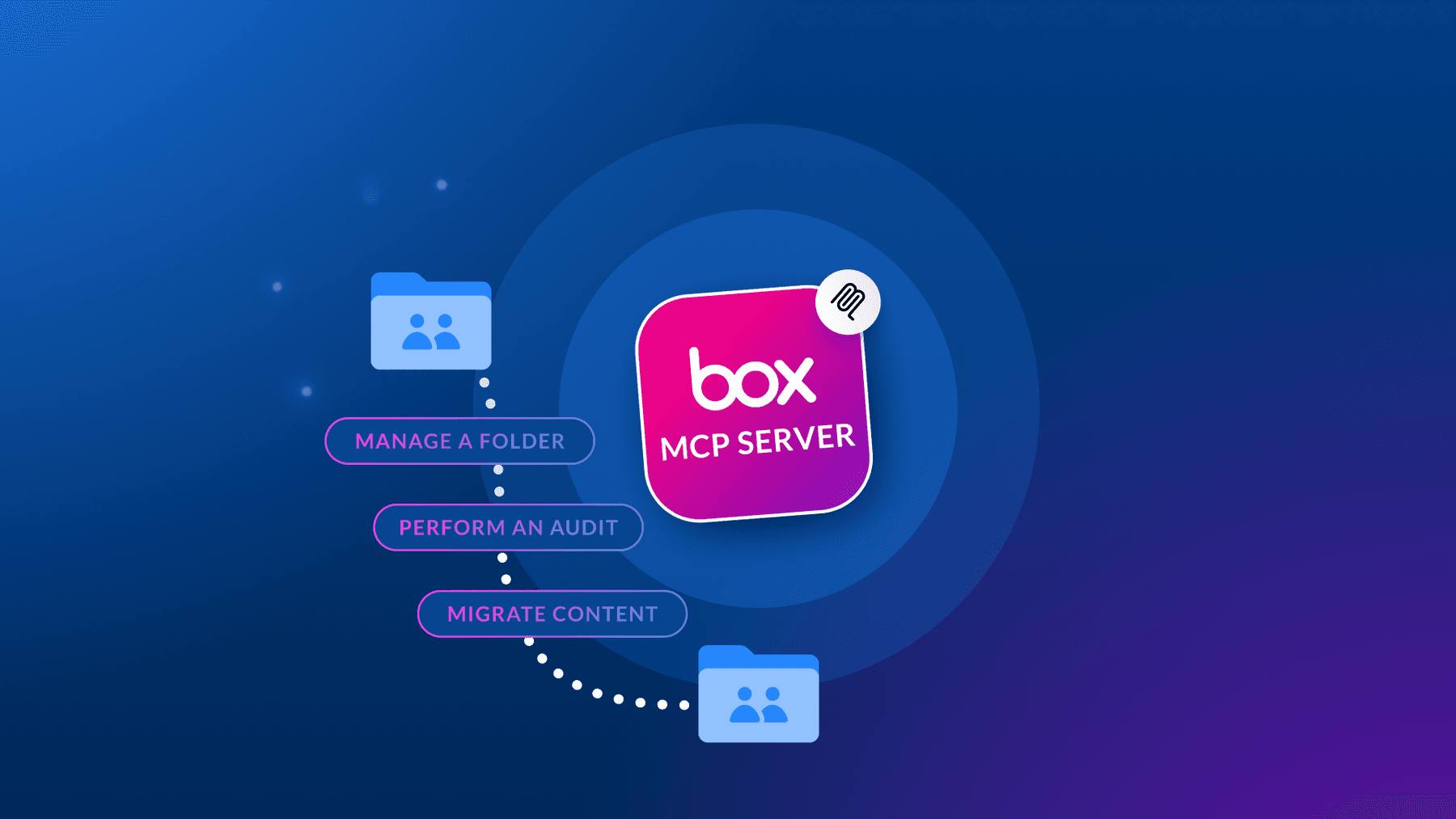
These operations can include uploading files, creating folders or Box Notes, moving or copying items, and creating collaborations or shared links. When an operation does not meet the applicable policy, it can be blocked with a structured error.
Choose which MCP tools are available
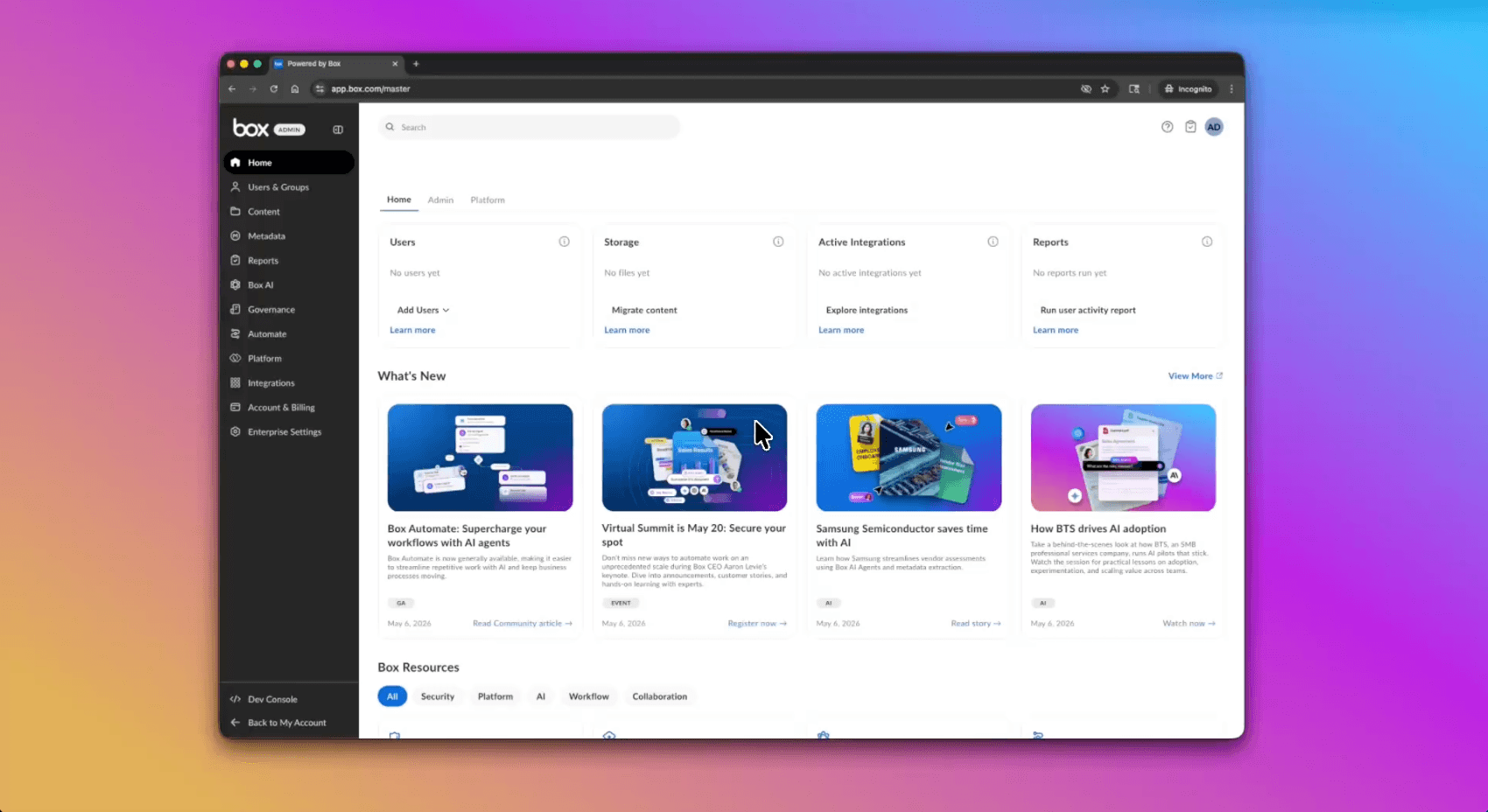
In the Admin Console Integrations settings, administrators have precise, granular control over Model Context Protocol (MCP) tool availability tailored to each specific integration and unpublished custom app.
Rather than applying a one-size-fits-all policy, administrators can customize tool configurations on a per-integration basis or configure unpublished apps independently. Each integration can be assigned dedicated scope presets — such as Disabled, Read, Read & Write, or Custom — alongside individual per-tool toggles. Administrators also retain global default controls across all MCP connections to establish baseline governance for the enterprise.
By defining exactly which Box operations are accessible per client, organizations can ensure AI agents operate strictly within their intended scope. Any disabled tools are automatically excluded from the client’s available toolset, effectively restricting agent actions and safeguarding sensitive data.
Enforce verified-domain requirements for AI connections
Now, organizations that configure verified-domain restrictions in Claude Enterprise or ChatGPT Enterprise can use verified identity claims to limit Box account connections exclusively to approved corporate AI workspaces.
This ensures enterprise Box content cannot be accessed or used within personal ChatGPT and Claude accounts, preventing data leakage and keeping all work-related AI interactions strictly within your organization’s authorized environments.
Get better visibility into AI usage
Box has introduced the MCP Platform Activity Report alongside the renamed MCP Tool Calls Report. Together, these reports give administrators visibility into MCP integrations and activity.
The MCP Tool Calls Report provides event-level details such as the integration, user, tool, request status, duration, and errors. Teams can use these reports to understand adoption, review activity, and support their audit and governance processes.
Get started today
The latest Box MCP server updates give users more ways to work with AI and Box content, while giving administrators fine-grained control over access, actions, and visibility.
To see which platforms and client integrations are available, learn how to connect your preferred AI tools, and configure administrative settings, explore Box MCP server and Reports (under Integrations in the Admin Console) or check out our Box MCP server setup guides and documentation for step-by-step connection instructions.