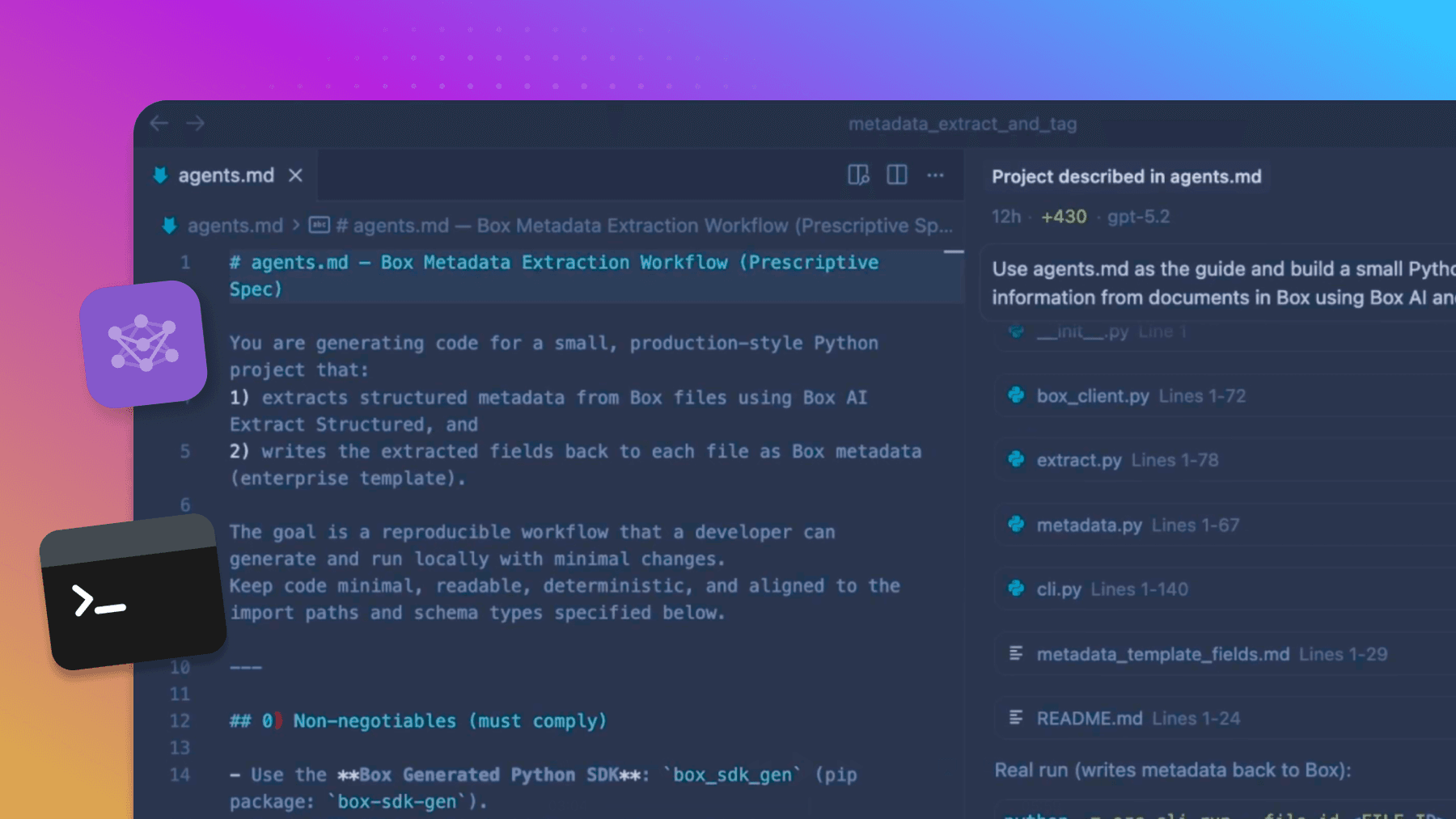
Lots of customers use AI to help describe images to enable easier search. AI is really good at identifying objects, people, and text in images. But sometimes customers approach with a desire to search and filter on what we can call technical metadata:
- EXIF (Exchangeable Image File Format)
- ICC Profile (International Color Consortium)
- JFIF (JPEG File Interchange Format)
- MPF (Multi-Picture Format)
Depending on the sources and how they were produced, images will have some or all of this metadata embedded, and this information is important for digital asset management (DAM) use cases. Other file formats will have other types of technical metadata embedded.
Now Box can extract all this important information.
In this technical article I will show how Box extracts this information and how, using Box API and metadata, we can make it all searchable and available for the Box Apps dashboard.
Key takeaways:
- Embedded metadata is now available for any Box format you can preview
- Embedded metadata is provided as a representation to the file — an expression of the data in the file in a different format like thumbnails, PDF, text, markdown, or technical data
- You need a metadata template, a script, and a Box App to use embedded metadata

What is embedded metadata?
Embedded metadata is a new representation that Box can generate for files. It’s available for any format we can already preview. Depending on content type, different metadata is extracted. Here are some examples: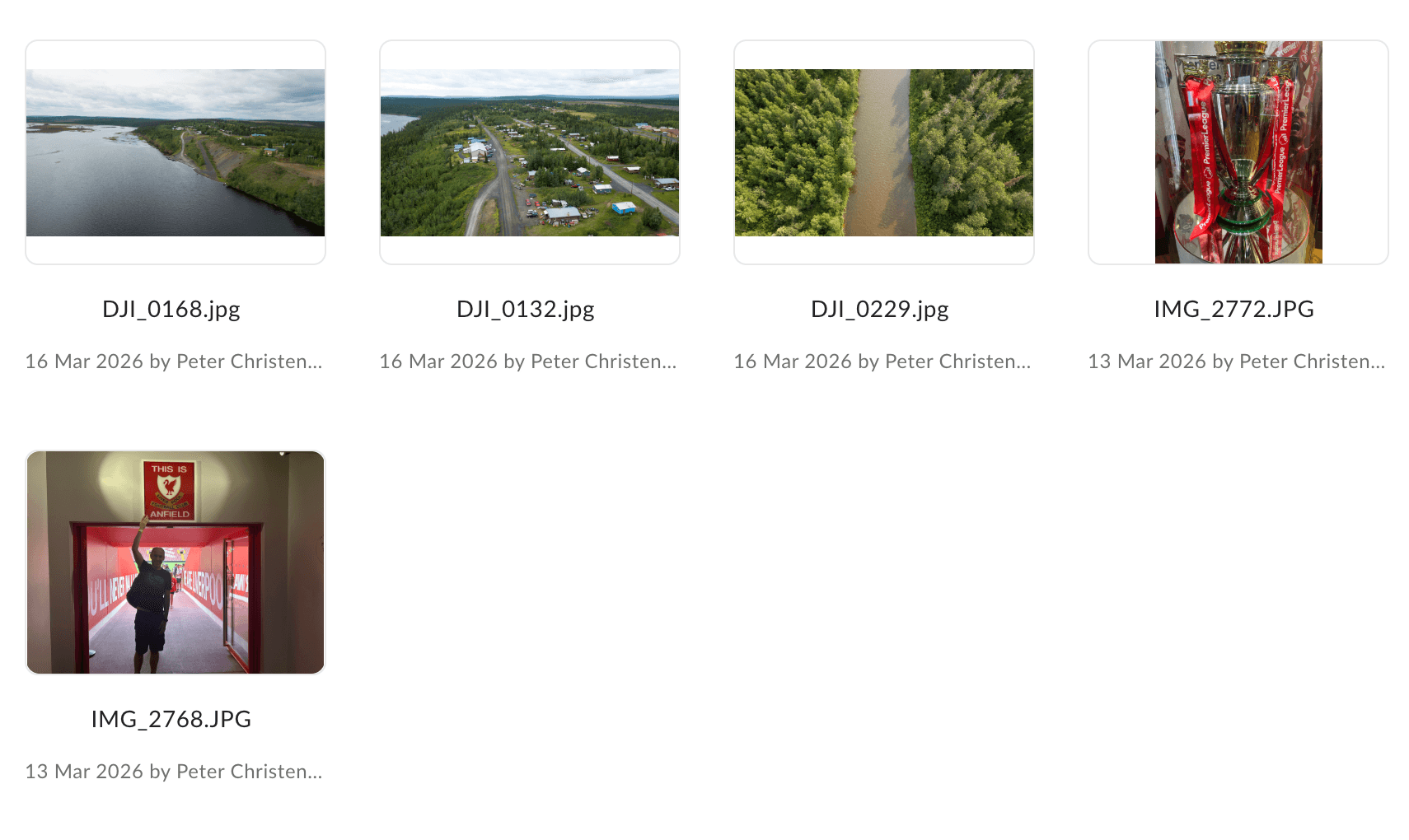
Not all images will have this many attributes, as some tools will remove part of this metadata, and not all software adds all attributes.
{
  "BoxNormalized": 1 attribute,
  "File": 9 attributes,
  "JFIF": 4 attributes,
  "EXIF": 49 attributes,
  "MakerNotes": 19 attributes,
  "MPF": 9 attributes,
  "ICC_Profile": 17 attributes,
  "JPEG": 1 attribute
}

Sample quicktime video file
{
  "BoxNormalized": 1 attribute,
  "File": 3 attributes,
  "QuickTime": 52 attributes
}
Getting the embedded metadata
As I mentioned, the embedded metadata is provided as a representation to the file. A representation in Box is an expression of the data in the file in a different format like thumbnails, PDF, text, or markdown — or in this case, technical metadata.
Some representations are generated automatically when a file is uploaded, such as DOCX, PDF, extracted text, and most thumbnails. These representations are used for previews, thumbnails, full text search, etc. The focus of this article, embedded_metadata, is an ondemand representation. I’ll show what this means.
To start with, I’ve uploaded some images that I want displayed with EXIF metadata in my dashboard.
To get representations for an image, I need to use the /files endpoint and request the representations field. Here is a Python example of retrieving and listing available representations:
def list_representations(client: BoxClient, file_id: str) -> None:
   """Fetch and print all available representations for a file."""
   file = client.files.get_file_by_id(
       file_id,
       fields=["representations"],
   )


   entries = (
       file.representations.entries
   )


   print("Representations for file", file_id)
   print("-" * 50)

   for rep in entries:
       dims = rep.properties.dimensions if rep.properties and rep.properties.dimensions else ""
       dims_str = f"  |  dimensions: {dims}" if dims else ""
       print(f"  type: {rep.representation}{dims_str}")


Representations for file 2163735367009
--------------------------------------------------
  type: jpg  |  dimensions: 32x32
  type: jpg  |  dimensions: 94x94
  type: jpg  |  dimensions: 160x160
  type: jpg  |  dimensions: 320x320
  type: jpg  |  dimensions: 1024x1024
  type: png  |  dimensions: 1024x1024
  type: png  |  dimensions: 2048x2048
  type: jpg  |  dimensions: 2048x2048
  type: 3d
  type: embedded_metadata
To get a specific representation, we need to add the x-rep-hint to the request. Here, I add [embedded_metadata]. The header takes an array as we can request more than one representation in a single call, should we need to.
def fetch_representation(
   client: BoxClient,
   file_id: str,
   rep_hint: str,
   token: str,
   asset_path: str = "",
   max_wait_seconds: int = 30,
   poll_interval: int = 3,
) -> bytes | None:
    file = client.files.get_file_by_id(
       file_id,
       fields=["representations"],
       x_rep_hints=rep_hint,
   )


   entries = (
       file.representations.entries
   )
   rep = entries[0]
   state = rep.status.state


   state_str = state.value if state else "unknown"
   url_template = rep.content.url_template
   print(f"state: {state_str}  |  url_template: {url_template}")

state: none  |  url_template: https://dl.boxcloud.com/api/2.0/internal_files/2163735367009/versions/2392182789409/representations/embedded_metadata/content/{+asset_path}
The none state means the representation hasn’t been generated yet, as it’s an ondemand representation. The first time we try to download it, Box will create it. This means that the request to download will return a 202 Accepted and the status will change to pending. After the first call, we need to wait a bit before fetching the actual embedded metadata json. It normally takes a second or two to generate the representation.
if state == FileFullRepresentationsEntriesStatusStateField.NONE:
       print("State is 'none' - triggering generation via info URL...")
       if rep.info and rep.info.url:
           requests.get(rep.info.url, headers={"Authorization": f"Bearer {token}"})
       state = FileFullRepresentationsEntriesStatusStateField.PENDING


   # Poll until ready or timed out
   elapsed = 0
   while state == FileFullRepresentationsEntriesStatusStateField.PENDING:
       if elapsed >= max_wait_seconds:
           print(f"Timed out after {max_wait_seconds}s waiting for representation.")
           return None
       print(f"  State is 'pending' - waiting {poll_interval}s... (elapsed: {elapsed}s)")
       time.sleep(poll_interval)
       elapsed += poll_interval


       file = client.files.get_file_by_id(
           file_id,
           fields=["representations"],
           x_rep_hints=rep_hint,
       )
       entries = (
           file.representations.entries
       )
       rep = entries[0]
       state = rep.status.state if rep.status else None


   ready_states = {
       FileFullRepresentationsEntriesStatusStateField.SUCCESS,
       FileFullRepresentationsEntriesStatusStateField.VIEWABLE,
   }
   if state not in ready_states:
       print(f"Representation ended in unexpected state: {state}")
       return None


   url_template = rep.content.url_template


   download_url = url_template.replace("{+asset_path}", asset_path)
   response = requests.get(
       download_url,
       headers={"Authorization": f"Bearer {token}"},
       allow_redirects=True,
   )
   response.raise_for_status()
   return response.content

[
  {
    "BoxNormalized": {
      "PageCount": null
    },
    "File": {
      "FileType": "JPEG",
      "FileTypeExtension": "jpg",
      "MIMEType": "image/jpeg",
     …truncated 5 fields
    },
    "JFIF": {
      "JFIFVersion": 1.01,
      "ResolutionUnit": "inches",
      "XResolution": 300,
      "YResolution": 300
    },
    "EXIF": {
      "Make": "Apple",
      "Model": "iPhone 14",
      "Orientation": "Horizontal (normal)",
     …truncated 48 fields
    },
    "MakerNotes": {
      "MakerNoteVersion": 15,
      "RunTimeFlags": "Valid",
      "RunTimeValue": 6241807022333,
    …truncated 15 fields
    },
    "MPF": {
      "MPFVersion": "0100",
      "NumberOfImages": 2,
      "MPImageFlags": "(none)",
     …truncated 6 fields
    },
    "ICC_Profile": {
      "ProfileCMMType": "Apple Computer Inc.",
      "ProfileVersion": "4.0.0",
      …truncated 19 fields
    },
    "JPEG": {
      "HDRGainCurve": "(Binary data 1392 bytes, use -b option to extract)"
    }
  }
]
That gave us 114 data points from the image metadata. Note that not all images will have all data points — or even all categories of metadata — and the actual data will differ between formats and types.
Using the embedded metadata
Next question is the obvious: How can I use the data in my Box App?
For this, we need three things:
- A metadata template with the fields we need for our app
- A script that extracts the values from the embedded metadata representation and applies them to metadata
- A Box App with a dashboard that can display the images and the metadata (or a custom page using the metadata view available in the Box UI Element Content explorer)
The template I can create directly in Box. I’ve included nine data points for my template
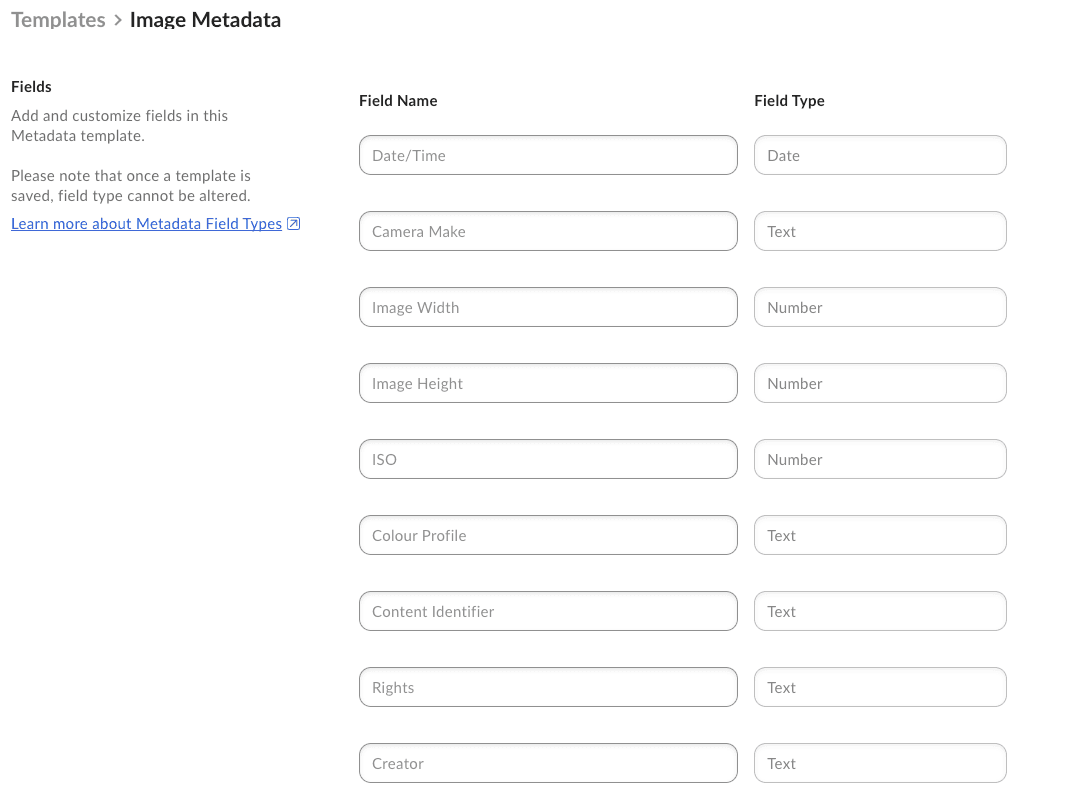
Next, a script that reads each of these data points from the embedded metadata and applies them to the image as metadata. I’ve fetched the embedded metadata representation and added mapping between the above metadata template and the JSON paths in the representation:
EMBEDDED_METADATA_FIELD_MAP = {
   "DateTimeOriginal":         ("[0].EXIF.DateTimeOriginal",          "date"),
   "Make":                     ("[0].EXIF.Make",                      "text"),
   "ImageWidth":               ("[0].File.ImageWidth",                "number"),
   "ImageHeight":              ("[0].File.ImageHeight",               "number"),
   "ISO":                      ("[0].EXIF.ISO",                       "number"),
   "ProfileDescription":       ("[0].ICC_Profile.ProfileDescription", "text"),
   "Rights":                   ("[0].XMP.Rights",                     "text"),
   "Creator":                  ("[0].XMP.Creator",                    "text"),
}


embedded_metadata = json.loads(embedded_metadata_bytes.decode("utf-8"))


   fields = {}
   for template_field, (path, field_type) in EMBEDDED_METADATA_FIELD_MAP.items():
       value = _resolve_path(embedded_metadata, path)
       if value is not None:
           fields[template_field] = _coerce(value, field_type)


   print(f"Extracted {len(fields)} of {len(EMBEDDED_METADATA_FIELD_MAP)} fields:")
   for k, v in fields.items():
       print(f"  {k}: {v!r} ({type(v).__name__})")


   sdk_scope = (
       CreateFileMetadataByIdScope.ENTERPRISE
   )


   try:
       client.file_metadata.create_file_metadata_by_id(
           file_id=file_id,
           scope=sdk_scope,
           template_key=template_key,
           request_body=fields,
       )
       print(f"Metadata created: {template_key} on file {file_id}")
   except Exception as e:
    print(f"Metadata write failed: {e}")
I do this for every file in my folder.
Next we can add a Box Apps dashboard using the template we created, and we can now see and filter on our images based on the technical metadata extracted.
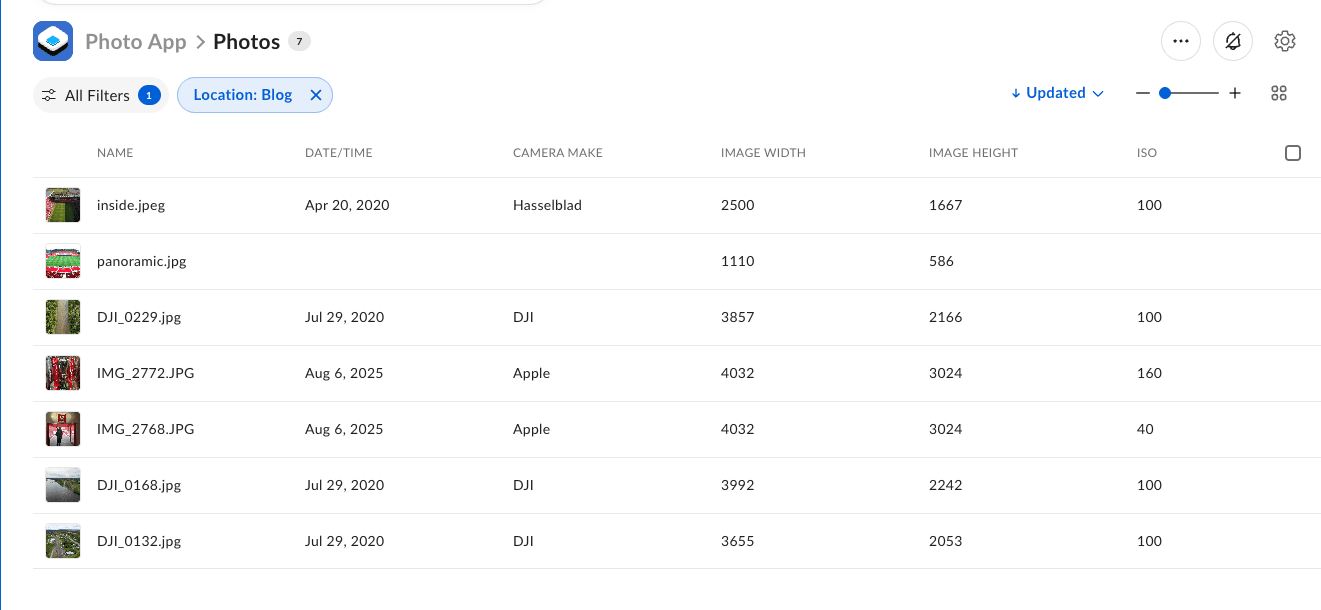
An obvious improvement would be to also generate a summary of the image and add this as part of the metadata to allow easy searching on both technical metadata and actual image content (objects, locations, persons, text, etc.). A search like below would work across images: 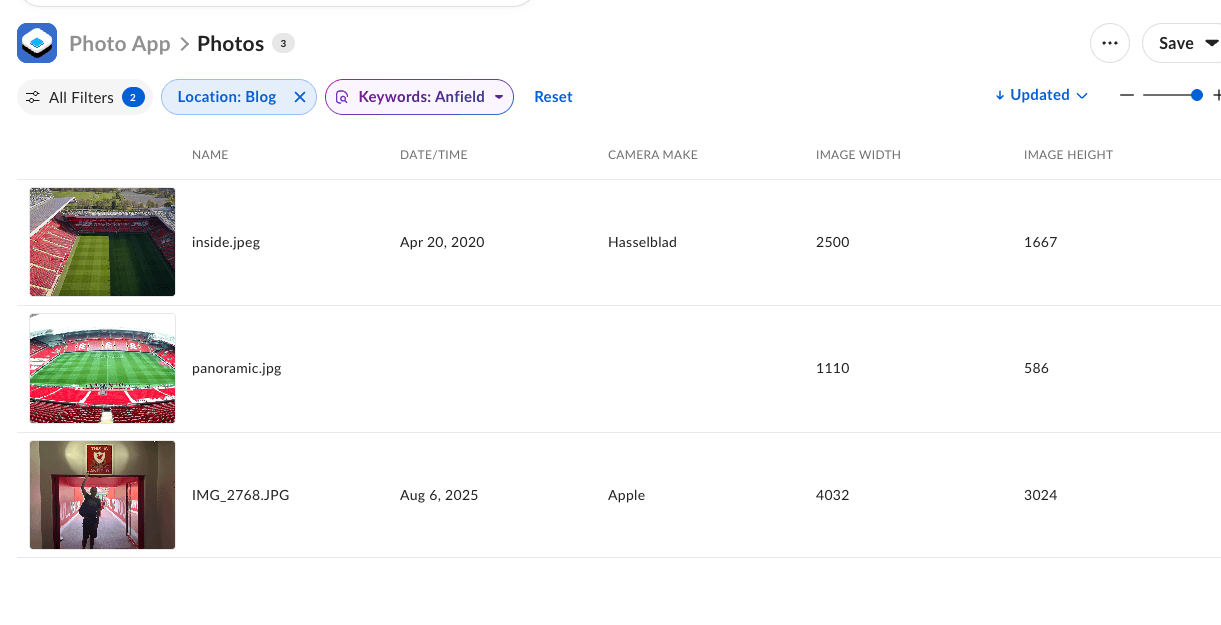
This is a link to the full python script used to generate the above.