You’ve got a Box app idea, a deadline, and an AI coding assistant. What you might not have is time to dig through SDK versions and auth patterns in order to get started. A single file can streamline that process.
In this post you’ll instantly spin up a working Box Node.js app with the right SDK version, auth, and patterns baked in using the AGENTS.md.
What is AGENTS.md
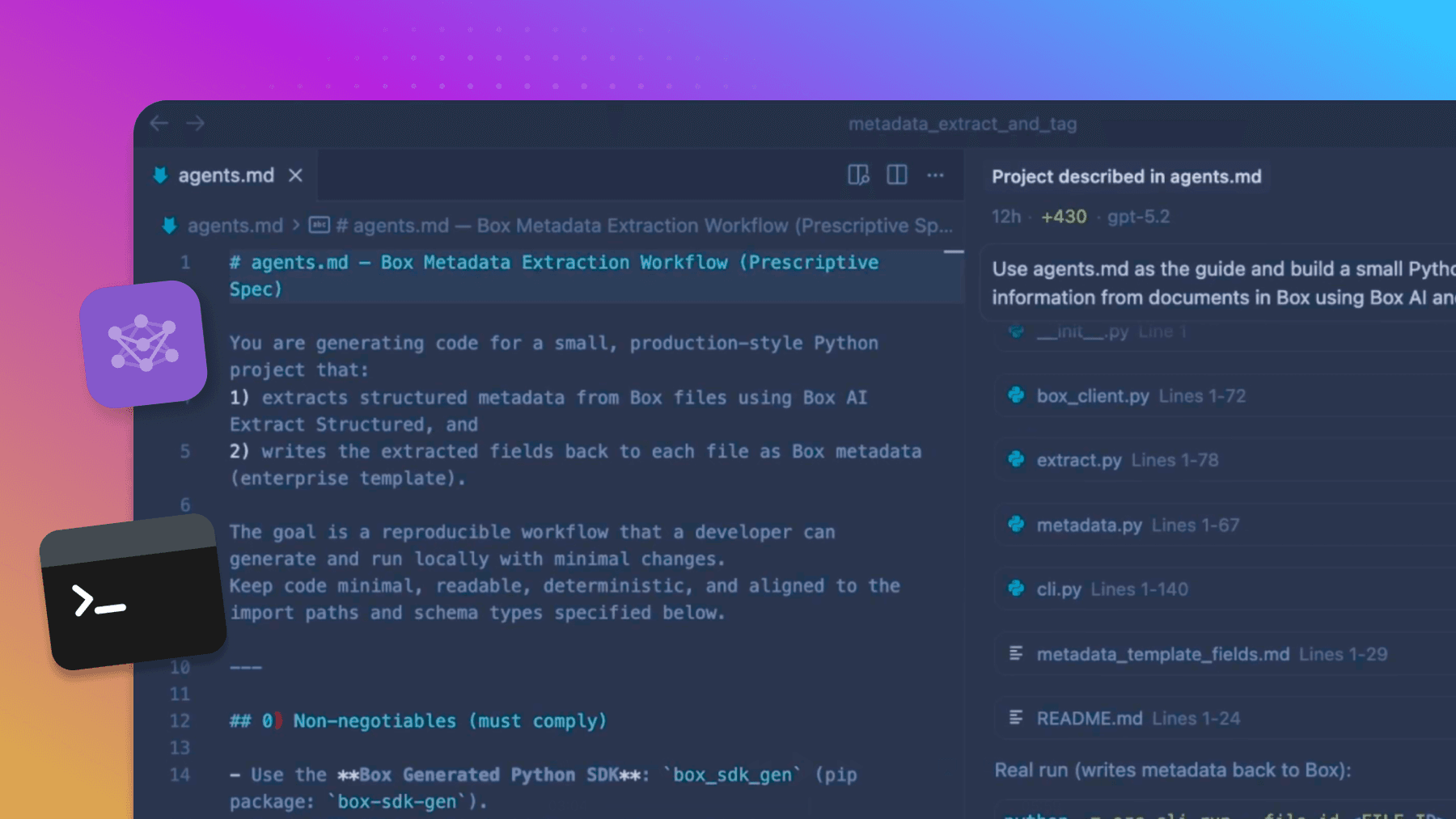
AGENTS.md is a markdown file in your repository that instructs AI coding agents how to work with a certain project. Unlike complete developer documentation, it’s written for the agent: SDK version, commands, auth snippets, common mistakes, and where to find additional resources. When you instruct the coding agent to “Build a small app that connects to Box and lists PDFs in the root folder,” the agent reads AGENTS.md first and follows it. So you get:
- The latest SDK version — the agent won’t suggest legacy SDK callbacks
- Correct auth with copy-paste snippets and env var names
- Fewer errors: Service Account collaboration, common operations and errors
It’s not teaching the agent the whole Box API, but rather giving it a short, project-specific playbook, which can be expanded with additional information.
Build a Box app with a single prompt
Prerequisites:
- In order to follow the guide, use an existing Box account or create a free developer account
- Create your first app in the Developer Console and generate a developer token
- Code editor with an AI agent like VS Code + GitHub Copilot, Cursor, Claude Code, JetBrains IDEs with an AI assistant

Let’s start with an empty directory and include the AGENTS.md for Box Node.js SDK. Next, create a simple prompt and reference the AGENTS.md file, for example:
“By following instructions from @AGENTS.md, build a small node app that connects to Box, accepts developer token, logs current user, and lists only PDF files in the root folder.”
The agent will proceed to create the initial setup for you:
1. Use Box Node SDK v10+ and BoxDeveloperTokenAuth
2. Set up package.json, tsconfig.json
3. Implement the index.ts that:
- Reads the token from the environment and exits with a clear message if missing
- Creates the client and logs the current user
- Gets only PDF files from the root folder and prints those files
4. Add .gitignore and a .env.example for the toke
No back-and-forth about SDK version, auth, or run command. The agent had one source of truth. Now, it’s your turn to complete the set up and run the project.
Create a new .env file and pass the developer token obtained from the Developer Console and run npm start. The app output is printing exactly what we asked it to, the user details and two PDF files stored in the root folder of that user.
Current user: {
  id: '1234567890',
  name: 'Aaron Levie',
  login: '[email protected]'
}

PDF files in root folder:
  - AI agents.pdf (id: 19342938479844)
  - Document.pdf (id: 19342938479845)
That’s it! Your app is ready to use and expand further. The AGENTS.md file will help you to seamlessly integrate with Box Platform.

Why this works
You might ask, why not just point the agent to documentation? Agents working with full docs tend to mix versions, choose the wrong auth approach, or miss project conventions.
AGENTS.md includes constrained, high-lever spec with context that lets the agent start generating code instantly, without a need for browsing the web or documentation. The agent doesn’t have to infer SDK version, auth, or conventions. It reads one file and stays on the rails. Thanks to this approach, you get a runnable app quickly, and you can extend the same file with more patterns (webhooks, retries, tests) as your project grows.
If you’re building with the Box Node.js SDK and using an AI coding assistant, dropping in an AGENTS.md tuned for Box is one of the fastest ways to go from idea to working code.
What we included in our AGENTS.md
AGENTS.md for the Box Node SDK is built so an agent can go from zero to a running app without guessing. On the top it states clearly to use Box Node SDK v10+, and that it’s TypeScript-first, auto-generated, and not backwards compatible with v3. That stops the agent from using old callback-style APIs or the wrong package. It includes core commands, quick start, and common operations. It spells out the common blockers, for example with JWT, the SDK leverages the Service Account and needs to be collaborated to content.
The file also includes instructions on what the agent can do without asking (read files, list folders, run a single test, type-check) and what it must ask first (install packages, delete files/folders, run full CI, revoke tokens). That keeps automation helpful without being destructive.
Here’s a high-level list of contents of the AGENTS.md file. You can download or clone it from our Box Community Github.
# AGENTS.md - Box Node SDK v10+ Quick Start
## Purpose
This guide helps AI coding agents assist developers in quickly building applications with Box Node SDK v10 or above. Focus on getting developers productive fast with best practices and common pitfalls highlighted.

## SDK Version
## Core Commands
## Quick Start (4 Steps)
## Common Operations
## Common Box API Errors
## Project Structure Hints
## Security Critical
## Safety & Permissions
## Common Mistakes
## When to Ask Developer
## Resources
Conclusion
As development evolves around AI agents supporting our work more and more, it’s crucial to try out new methods that increase productivity and help focus on solving business problems. We hope this approach will help you to get started with Box Platform even faster.
Remember, this was just a simple example of working with AGENTS.md file. It can be adjusted to other Box SDKs in the blink of an eye. It might differ with core installation instructions, but the whole concept is still applicable.
As AI agents become a bigger part of day-to-day development, small workflow upgrades can make a huge difference. Adding a Box-tuned AGENTS.md helps you move from idea to a running Box app with just one prompt.
Check out this blog post to learn how to use the same approach and build a metadata extraction CLI script.