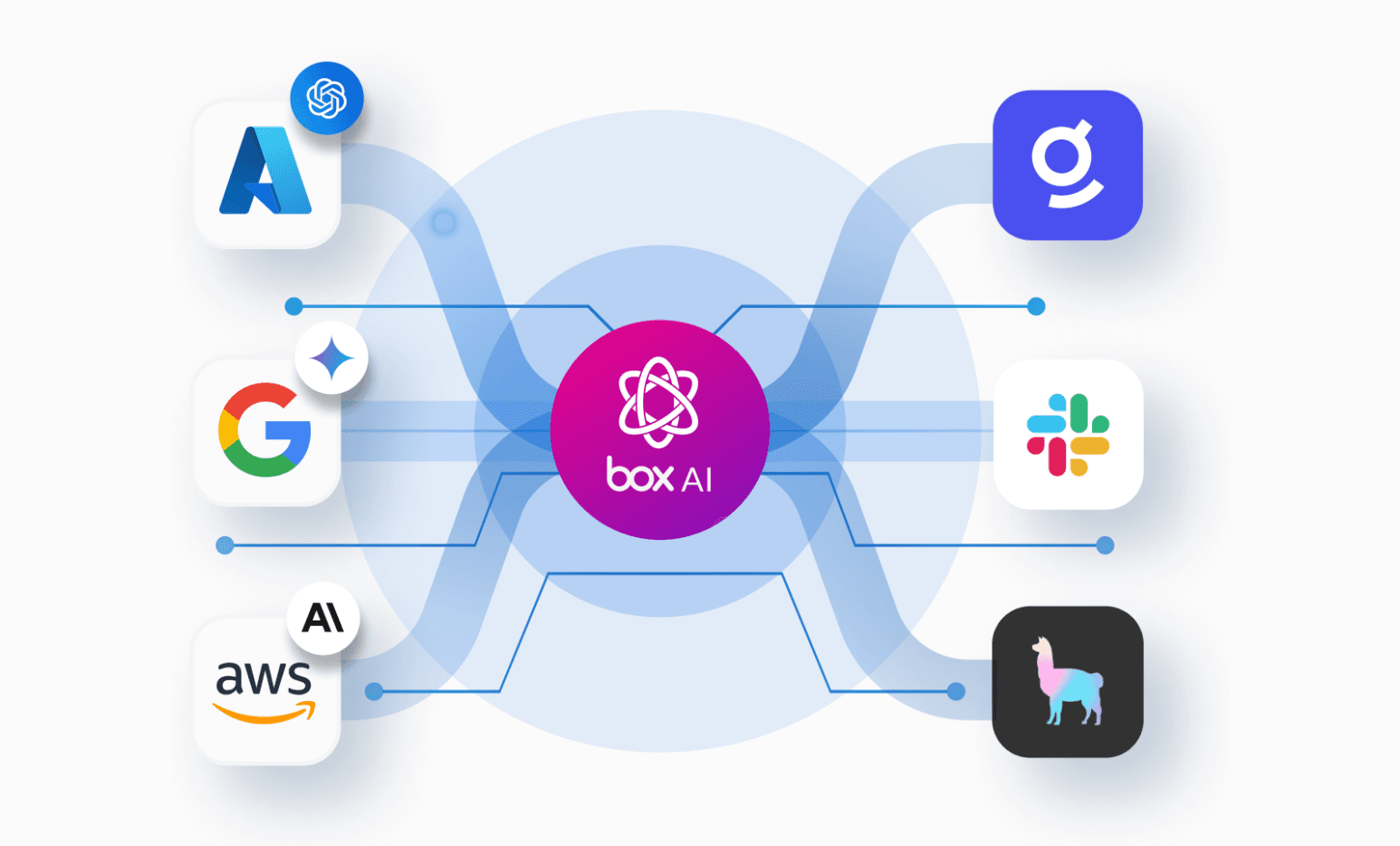
AI agents are great when they work for one person. They get a lot more interesting when they can work with your whole team.
This guide is a step-by-step developer tutorial for doing exactly that: building a "company brain" that connects Hermes Agent to the shared files, comments, versions, and context your team already works from in Box. By the end, you'll have a working implementation where Hermes is no longer just a personal assistant, but a teammate that gets work done from the same source of truth as everyone else.
To keep this tutorial focused, I'll assume you already have some experience setting up Hermes Agent Gateway on a VPS so your agent is available 24/7. For a detailed setup guide, check out the Hermes dev docs. We'll use a DigitalOcean Droplet to host our Hermes instance, but the same pattern works on any VPS provider.
Watch the demo first
Before we build it, check out the workflow in action!
The problem: AI agents are still too siloed
If you work on a marketing, content, product, or customer-facing team, this story probably feels familiar. You're working on a company product video. Someone drops a ZIP into a Slack thread, a teammate asks which assets are inside, more versions pile up (video_project_v2_FINAL.zip, final_final_revised.mov, launch_copy_v3.txt), feedback gets buried, and someone edits the wrong version.
Then an AI agent enters the loop and makes it worse, working confidently from its own local copy of the project. Tools like Hermes are powerful for individual productivity, but agent-to-human and agent-to-agent handoffs break down because everyone, human and machine alike, is working from different context.
The fix: give your agents the same shared workspace your team already uses, one source of truth they all draw from. That's where Box comes in.
What you'll build
By the end of this guide, you'll have:
- Hermes Agent running on a VPS with Slack as the gateway
- Box CLI installed on the same server
- A Box app using Client Credentials Grant (CCG) authentication
- A dedicated Box service account for Hermes
- A shared project folder that becomes the workspace for humans and agents
- A repeatable pattern for agentic workflows where Hermes can upload, read, analyze, and organize work in Box
The key design choice here is to not authenticate Hermes into the Box CLI as your personal Box user account. Instead, we create a Box app using Client Credentials Grant (CCG), which gives your agent its own service identity in Box.
What is a service account?
A service account is a dedicated identity for an application or automation. If Hermes uses your personal account, it can access everything you can, which is fine for local experiments, but the wrong model for team or customer-facing workflows. With a service account, Hermes gets its own Box identity, and you share only the folders it needs. That gives you a clean security boundary: Hermes acts as Hermes, and only sees what you've shared with it.
A Box CCG app is how we create that server-side identity. CCG lets your app authenticate without an interactive user login. You create an app in the Box Developer Console, authorize it in the Admin Console, and use its client ID, client secret, and enterprise ID to authenticate from your server. You’ll learn how to create the app below but for more detail, read the Box docs on Client Credentials Grant.
Prerequisites
You'll need:
- A free Box developer account
- A DigitalOcean account (or any other VPS provider)
- A Slack workspace where you can create and install apps
- Hermes Agent with a model provider configured
- Basic terminal familiarity
First, sign up for a free Box developer account. After signup, you'll be redirected to the Box Developer Console, where you'll create the CCG app that gives Hermes its service identity.
Step 1: Create a DigitalOcean Droplet
For this tutorial, we'll use a DigitalOcean Droplet as the VPS. DigitalOcean has a full guide for creating a Droplet.
For a development demo, a small Ubuntu Droplet is enough:
- Ubuntu 24.04
- 1 vCPU
- 2 GB RAM
- SSH key authentication
- Monitoring enabled
Once the Droplet is created, SSH into it:
ssh root@YOUR_DROPLET_IPUpdate packages and install basics:
apt update
apt upgrade -y
apt install -y curl git unzip jq build-essential nodejs npm
Step 2: Install Hermes Agent
Install Hermes Agent on the droplet by following the official Hermes docs.
After installing, verify it works:
hermes --versionThen run setup:
hermes setupPick the AI model provider you want to use and follow the prompts. Hermes supports different model providers, so I won't prescribe one (any major provider works). The important part is that Hermes runs successfully before we connect it to Slack and Box.
Quickly check that Hermes is properly set up:
hermesThen send "Hello" to see if Hermes responds. A working setup replies in the terminal; if you get no reply, re-run hermes setup and confirm your model provider key is configured.
Step 3: Create the Slack app and set up the Hermes Gateway
Hermes Gateway lets your agent run inside messaging platforms like Slack. Let's set up Slack as the messaging platform for our Hermes agent. Refer to the detailed Slack setup guide on the Hermes developer docs. By the end of it you should have: a Slack bot token, a Slack app token, the Slack app installed to your workspace, and the gateway configured.
Note: Since Hermes is running on a VPS, install Hermes Gateway as a system service when prompted. That way it starts on boot and keeps running after you close your terminal.
Check the service with:
systemctl status hermes-gatewayUseful commands:
systemctl restart hermes-gateway          # restart gateway
journalctl -u hermes-gateway -f            # stream the gateway's logs
journalctl -u hermes-gateway -n 100 --no-pager   # dump the last 100 log lines
Once the Slack app is installed and configured as your Hermes gateway, restart Hermes on the VPS:
systemctl restart hermes-gatewayTest it in Slack by sending a message with `@Hermes`:
@Hermes helloStep 4: Install the Box CLI
Now that your Hermes agent is functioning on Slack, lets connect it to Box with Box CLI. Box CLI basically makes Box completely headless, and you allow your Hermes agent to do all Box operations like reading files, creating/uploading files, and manage content on Box via CLI commands.
Install the Box CLI on the VPS (using the terminal you remotely connected to the VPS):
npm install --global @box/cliVerify:
box --versionGreat! Box CLI is installed on your VPS. We will auth into it later. For more, see the Box CLI docs.
Step 5: Create a Box CCG app
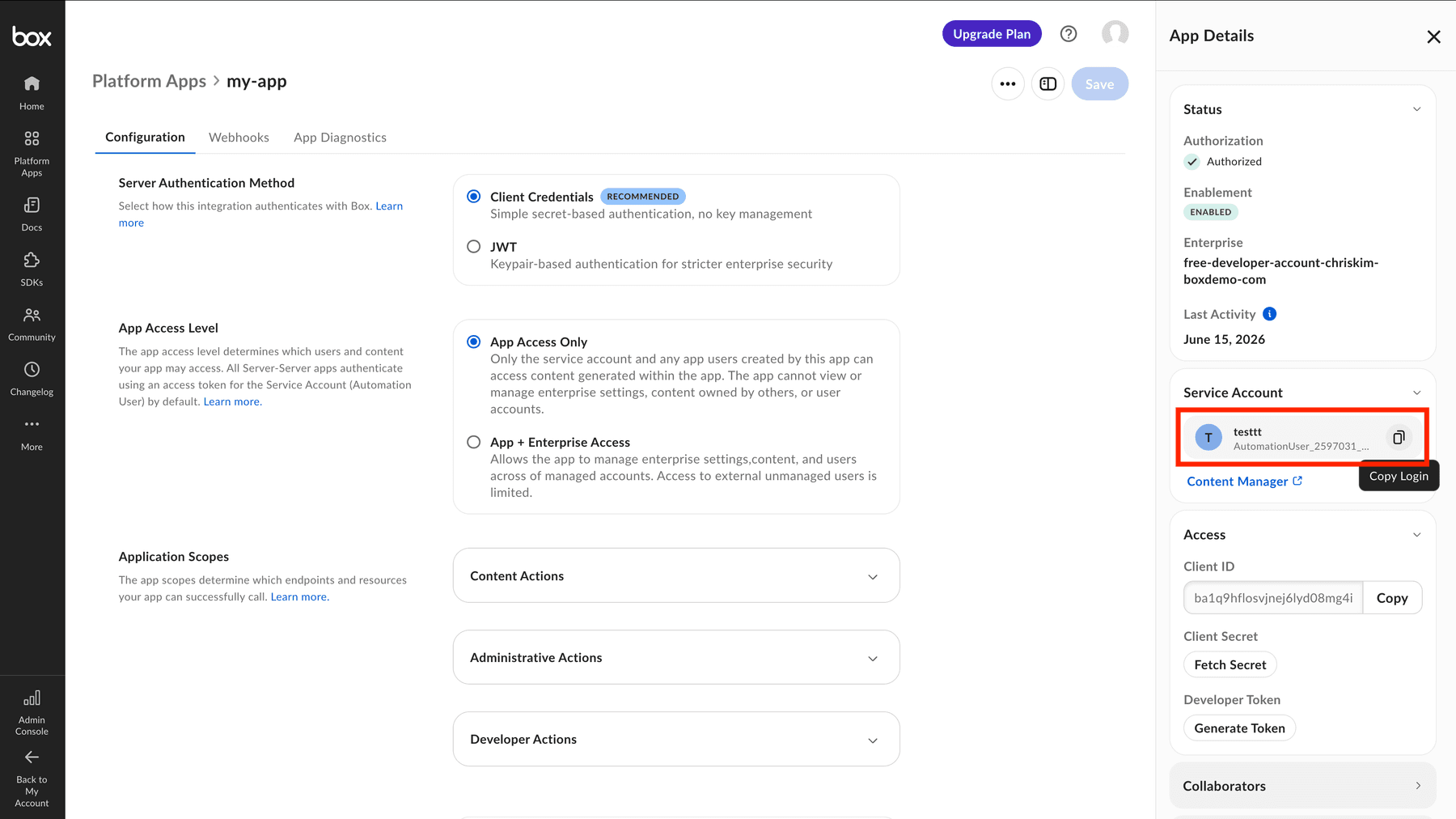
Go to the Box Developer Console and create a new app using Client Credentials Grant. This app is the service identity acting on behalf of your Hermes agent.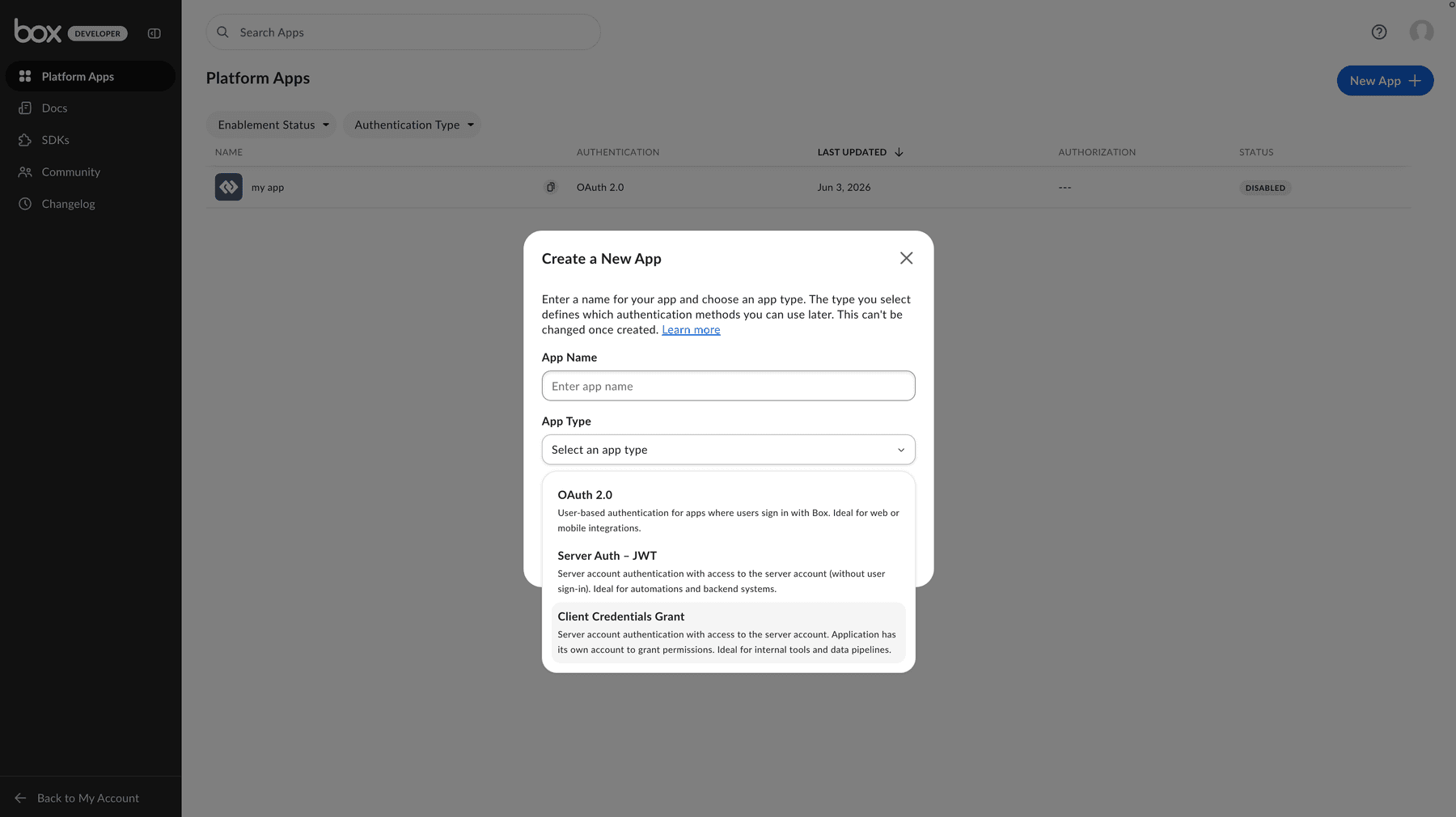
Once created, find theApp Detailsside bar on the right, and find these credentials:
- clientID
- clientSecret
- enterpriseID
Important: a CCG app must be authorized in the Admin Console before it can act enterprise-wide. Submit the app for authorization (or ask your admin to approve it). If you are using your free developer account, your CCG app will automatically be authorized. No further action needed.
Now create a config file on your VPS:
nano /root/box-ccg-config.jsonPaste:
{
  "boxAppSettings": {
    "clientID": "YOUR_CLIENT_ID",
    "clientSecret": "YOUR_CLIENT_SECRET"
  },
  "enterpriseID": "YOUR_ENTERPRISE_ID"
}
Save and exit:
Ctrl+O or Cmd+O
Enter
Ctrl+X or Cmd+X
Now let's configure the Box CLI environment to use our CCG app for authentication. This will let Hermes login to Box CLI using the CCG app and not a personal user account.
Add the environment to the Box CLI:
box configure:environments:add /root/box-ccg-config.json --ccg-auth --name serviceSet it as current:
box configure:environments:set-current serviceVerify the service identity:
box users:getYou should see an automation user, not your personal user. It may look something like:
Name: my-app
Login: [email protected]
That's the identity your Hermes agent will use in Box. Now when you tell your Hermes agent to do any Box operations, Hermes will be able to use the Box CLI to do so.
Step 6: Share a project folder with the service account
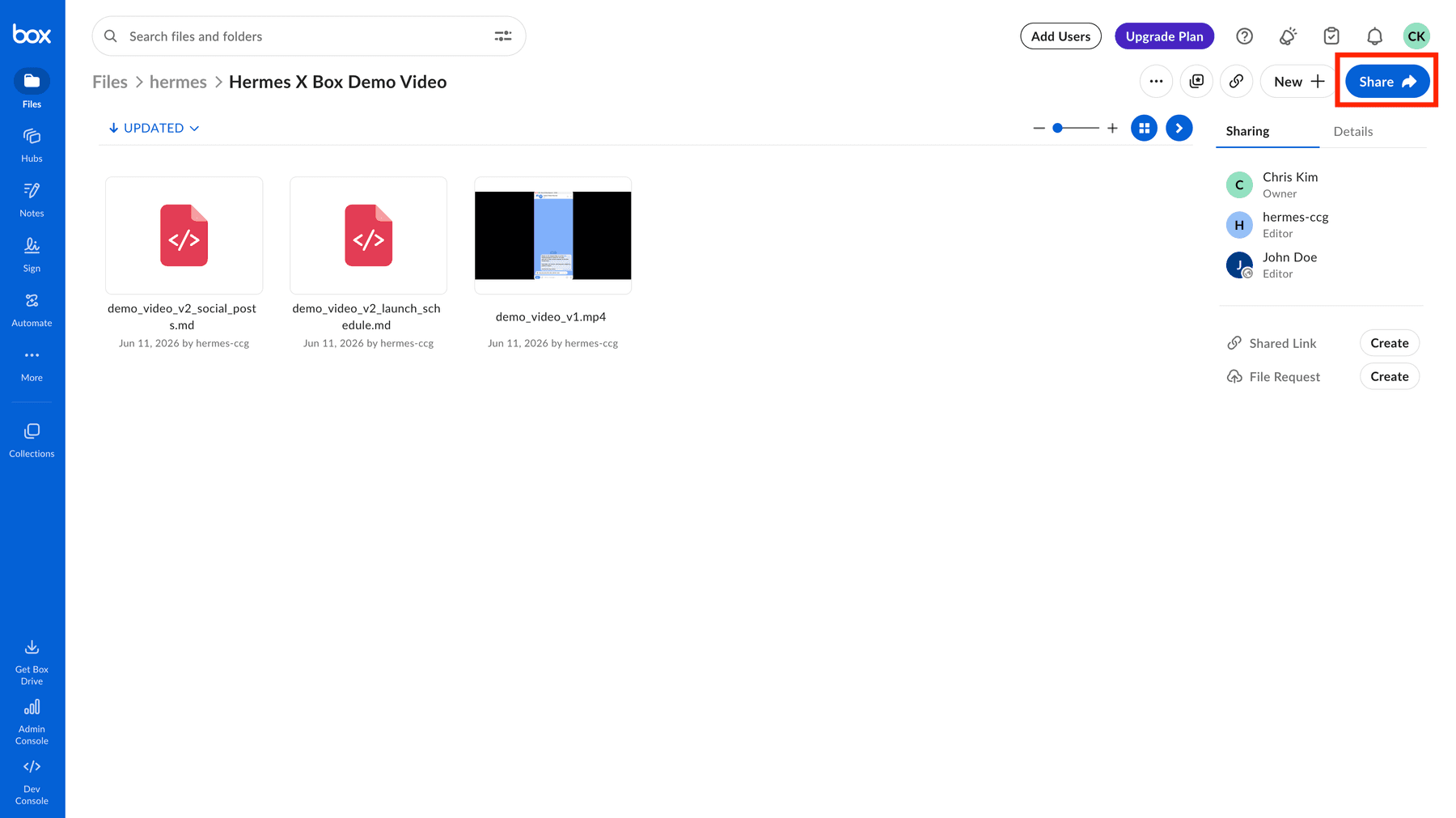
Create a folder in Box for your project — for example, Product Launch Video Project.
Go to the create CCG app page on the Box Developer Console, and copy the automation user email from the App Details side bar.
Now share that folder with the automation user from the previous step.
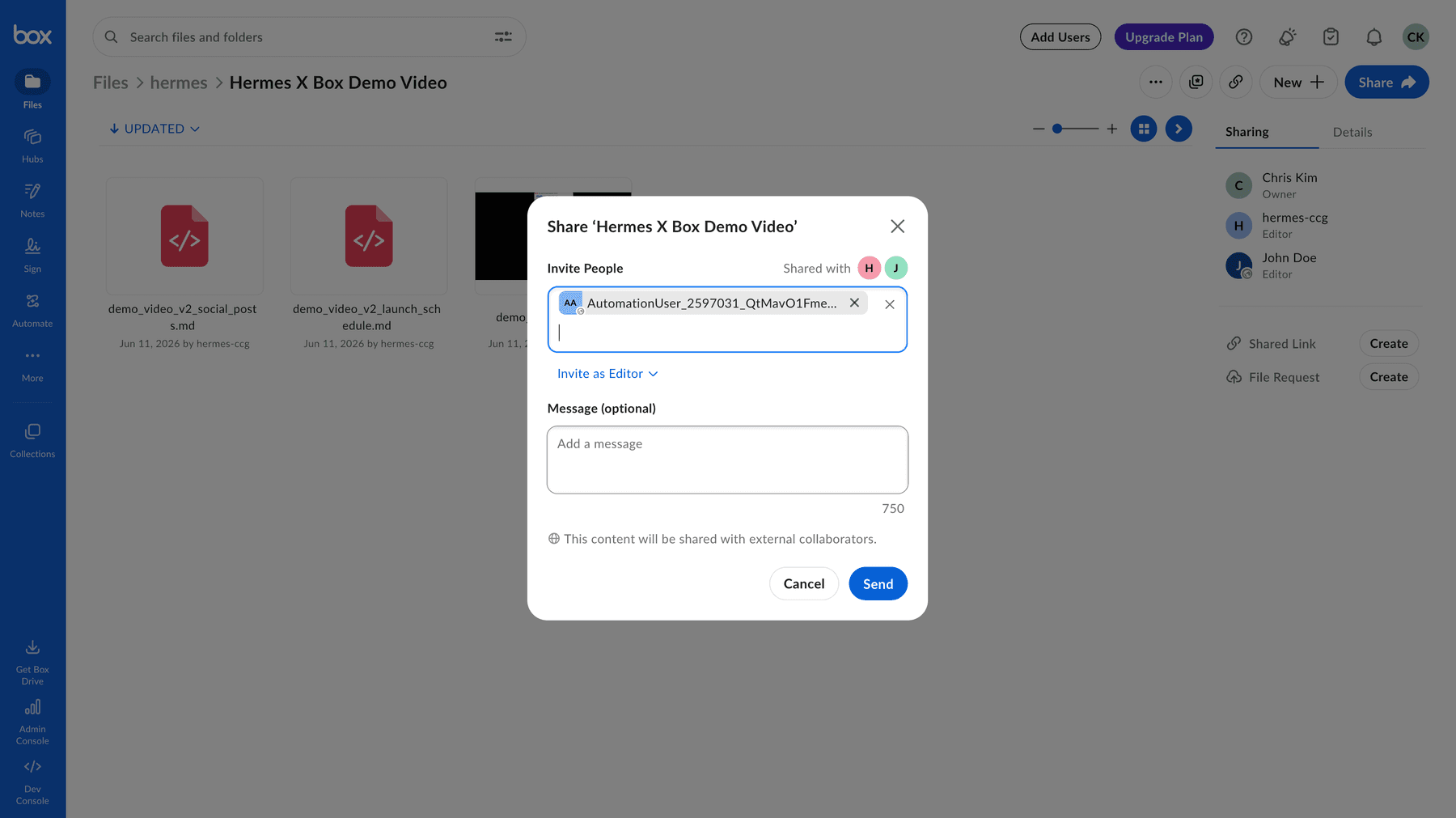
This is the key security boundary. Hermes doesn't need access to your whole account; it only needs access to this project folder.
Lets check if the limited access setup works! Ask your Hermes agent on Slack:
@Hermes Can you check what folders and files you see on the root level?If you only see the project folder you previously created we are good to go!
Congratulations! Box is now ready to act as the company brain for your Hermes agent. Use this folder as your single source of truth and let Hermes draw on it as context for the tasks you give it.
Let Hermes learn the Box CLI
Here's one of my favorite parts of Hermes: its self-improvement loop. You don't need to perfectly hand-author every Box CLI command up front. Instead, give Hermes a task and let it learn.
For example, in Slack:
@Hermes use the Box CLI to figure out who you are authenticated as, then list the files in the shared project folder.Then try:
@Hermes create a reusable skill for common Box CLI operations like listing folders, uploading files, downloading files, and checking the current service account.In the video demo, Hermes figured out how to work efficiently with the Box CLI and built its own reusable box-cli skill. I didn't create that skill first. Hermes learned from the environment and improved its future behavior.
You can still guide it with a short instruction:
- Always use the Box CLI service environment.
- Only operate inside the approved project folder.
- Ask before deleting or overwriting content.
- Preserve version history whenever possible.
- Treat Box as the durable source of truth.
Ask Hermes to use the Box CLI, watch where it struggles, correct it, and let it create a better workflow for next time.
Where this really shines: real-world ways teams put the shared brain to work
My demo was about collaborating on a video launch, but once Hermes and your team share the same source of truth in Box, you can use it for any work where humans and agents need to stay on the same page. Here are a few scenarios to spark ideas,Try them, then invent your own!
Content & marketing collaboration (your video launch, leveled up). Your editor drops the final cut in Box, a writer leaves feedback as a comment, and Hermes picks it up without anyone re-explaining the project:
@Hermes the V2 cut is approved — generate captions, a YouTube description, and 3 thumbnail concepts, then save them in the launch folder.A second agent on a teammate's machine can later pull that same folder to schedule the posts. Nobody asks "which file is final?" ever again.
Product launch coordination. PM, design, and marketing are all racing toward the same date. Instead of a launch doc that goes stale the moment it's written, let Hermes assemble it live from the shared workspace:
@Hermes read the spec, the latest mockups, and the QA notes in the Launch folder, then draft a go/no-go checklist and a one-page launch brief.When the spec changes, re-run it — the brain always reads the current truth, not last week's copy.
Engineering work. Point Hermes at the repo exports, design docs, and incident notes living in Box so the whole team works from one context:
@Hermes summarize the open issues and the design doc in the Auth-Service folder, then draft release notes for the v3.2 deploy.Onboarding a new engineer? They (and their agent) read the same folder the senior team does — no tribal knowledge trapped in DMs.
Legal & contract work. Legal lives and dies by version control, so a single source of truth is a gift here:
@Hermes compare the redlined V2 of the vendor MSA against V1, list every changed clause, and flag anything that touches liability or termination.Counsel comments directly on the file in Box; Hermes (and any reviewer's agent) always pulls the latest signed version, not a stray email attachment.
Personal side projects. Even solo, the setup pays off — your "team" is just you across a laptop, a phone, and a couple of agents:
@Hermes here are my workout logs and recipes for the month — build me a meal-and-training plan and drop it in my Side Projects folder.Start the idea on your phone, finish it on your laptop, and let a different agent pick it up tomorrow.
The thread running through all of these is the one you've been building toward:
Different teams. Different agents. Different interfaces. Same shared workspace.
Pick the scenario closest to your world and run it today. Then get creative!The best use case is almost always the one you discover once the friction is gone. Have fun with it and share what you’ve built in the comments!