Staying aligned, moving quickly, and collaborating seamlessly are all table stakes for teams today. This quarter, Box introduced a suite of powerful updates across our web app, mobile app, Box Notes, and Box Hubs designed to eliminate daily workflow bottlenecks and elevate your team’s productivity.
Rather than just listing what’s new, let’s look at how these updates solve real-world workflow bottlenecks, why they matter for your daily productivity, and how your teams can put them to work right away.
Key takeaways:
- Box has introduced a unified commenting experience that consolidates all feedback, threaded conversations, and resolved threads into a single pane within file previews and Box Notes
- The Box video player has been upgraded with a refreshed interface, timestamped comments on the seek bar, and frame guides to preview different aspect ratios
- Box Mobile now features Box AI in search for instant file insights, alongside quicker navigation shortcuts to Box Notes, Box Hubs, and task assignments
A unified commenting experience
Feedback is critical to collaboration, but managing it shouldn’t be a project in itself. When reviewers leave page-level comments in one place, text-specific annotations in another, and additional feedback in chat, context gets lost and project owners waste time consolidating notes instead of acting on them.
In file previews and Box Notes, we’ve redesigned our commenting experience to give you a single, unified space for all feedback. Comments and annotations now live together in one pane, so everyone can see the full conversation in context. Here’s what’s new:
- Threaded conversations & @mentions: Teams can have structured discussions directly on the file, and use @mentions to instantly loop in the right collaborator without ever leaving the document
- Resolved comment threads: Once feedback has been addressed, mark the thread as “resolved” and it tucks neatly into a filter, keeping your active pane clutter-free while preserving the full history if you need to revisit it later
- Comment deletion controls: Authors have full control over their own comments (note that deleting a root comment will also remove its associated thread to keep conversations coherent)
- Adjustable pane width: For heavy review sessions, simply drag the divider to expand the comments pane and get a more comfortable split-screen view.
Version history at a glance
We introduced a new version review dropdown directly in the preview header. Now you can see recent versions at a glance, including who uploaded them, when, and the file size, and jump between them instantly without leaving the preview screen. No more opening a separate version history view first. This brings transparency to document iterations, so everyone moves forward confidently with the correct, most up-to-date file.
A more modern, collaborative video player
Reviewing video content has traditionally been a process that exists outside of Box. We’re introducing major updates to the video player in Box to streamline your media workflows:
- Refreshed player experience: Smoother navigation, enhanced animations, and more intuitive controls for playing, pausing, scrubbing, and adjusting playback settings — so you can focus on the content, not the controls
- Comments on the seek bar: Timestamped comments and annotations now appear directly on the seek bar so you can see exactly where feedback exists in the video and jump straight to that moment, making review workflows incredibly precise and contextual
- Frame guides: Toggle frame guides to preview how a video will look across various aspect ratios, including vertical, widescreen, square, cinematic, and mobile-first social formats; action-safe and title-safe lines ensure logos, text, and key visuals are perfectly framed before export
Flexibility to help you design more visually-stunning Box Hubs
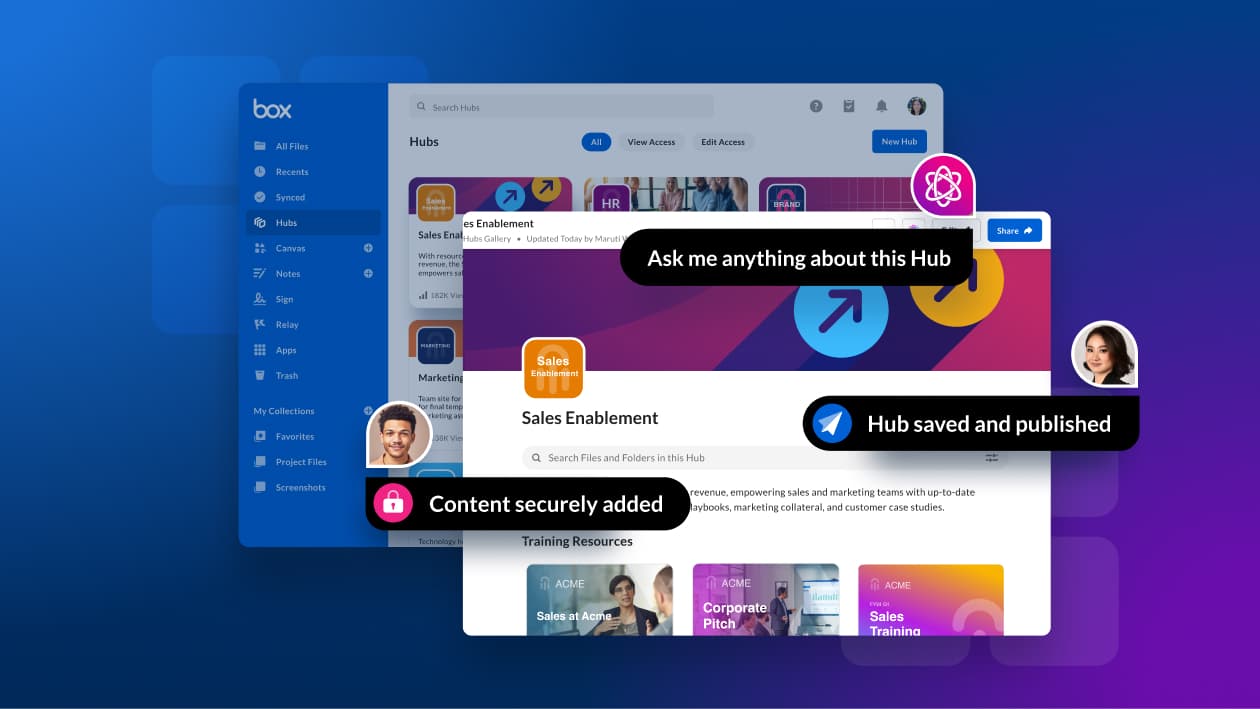
Organizing and publishing engaging content across an organization just got easier. In Box Hubs, we’re giving Hub editors more flexibility to design polished, easy-to-navigate portals that look and feel like custom websites:
- Inline image blocks: Place images directly within a Box Hub. Upload from your computer, select from Box, paste from your clipboard, or drag and drop. Once added, you can crop and resize using preset aspect ratios (Square 1:1, Wide 16:9, Portrait 3:4) within responsive layouts that look great on any screen size. Viewers can also click any image to open it in a full-screen view.
- Top view tab navigation: In addition to the default left sidebar, Hub creators can now display pages as horizontal tabs at the top of the Hub for a familiar, intranet-like experience. Nested sub-pages appear in clean hover dropdowns, a “more” button handles overflow tabs automatically, and pages can be reordered, nested, or duplicated directly from the tab bar.
Flexibility to help you design more visually-stunning Box Hubs
Organizing and publishing engaging content across an organization just got easier. In Box Hubs, we’re giving Hub editors more flexibility to design polished, easy-to-navigate portals that look and feel like custom websites:
- Inline image blocks: Place images directly within a Box Hub. Upload from your computer, select from Box, paste from your clipboard, or drag and drop. Once added, you can crop and resize using preset aspect ratios (Square 1:1, Wide 16:9, Portrait 3:4) within responsive layouts that look great on any screen size. Viewers can also click any image to open it in a full-screen view.
- Top view tab navigation: In addition to the default left sidebar, Hub creators can now display pages as horizontal tabs at the top of the Hub for a familiar, intranet-like experience. Nested sub-pages appear in clean hover dropdowns, a “more” button handles overflow tabs automatically, and pages can be reordered, nested, or duplicated directly from the tab bar.
Stay productive on the go with Box Mobile
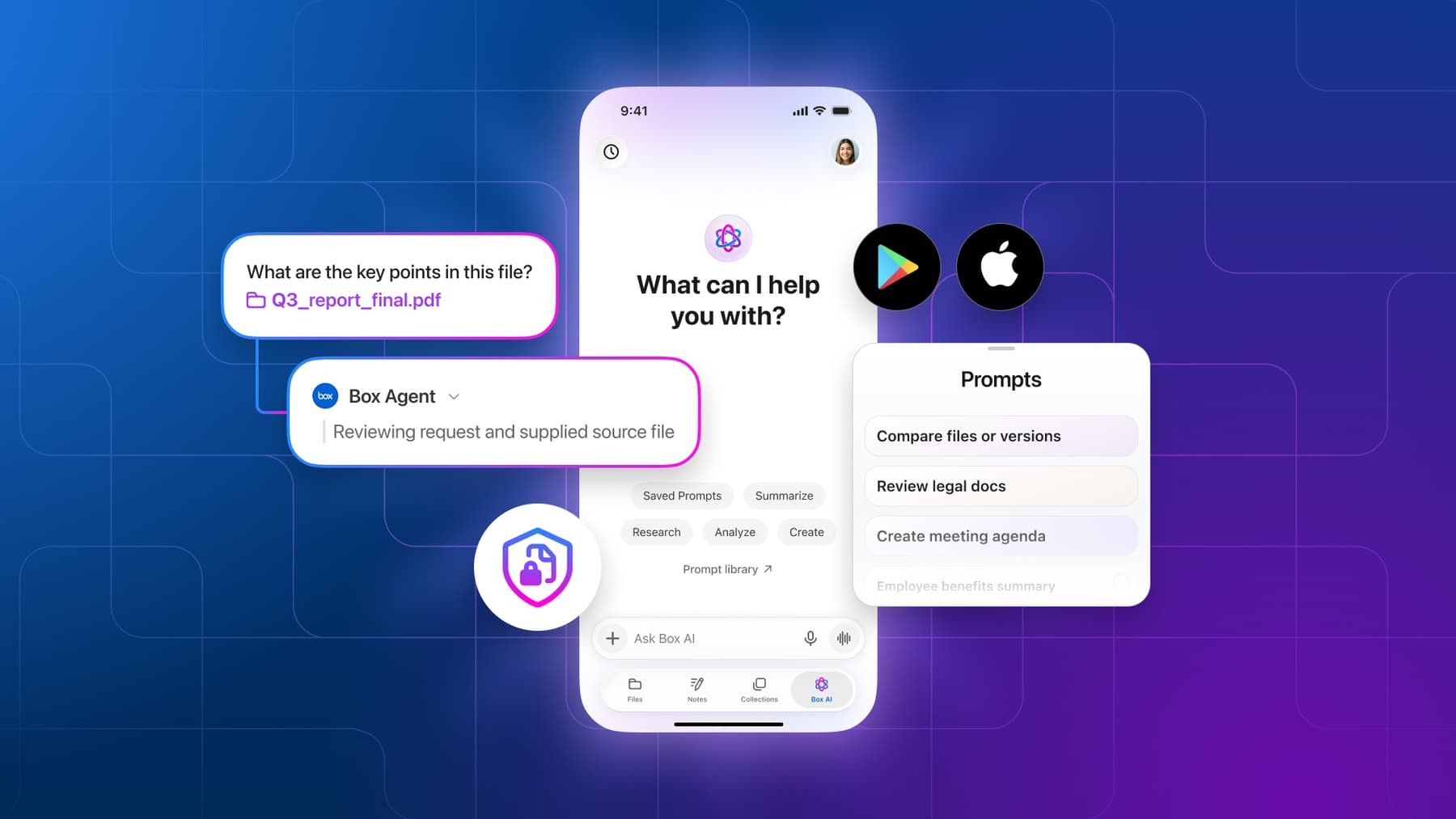
We recently added AI Home to Box Mobile, making it simpler to use your content stored in Box as a source for your questions and summaries. Instead of manually piecing together information or sifting through individual files to use AI, you get answers grounded in your organization’s actual business content, including the presentations, documents, and notes your team has already built.
And since work doesn’t stop when you step away from your desk, we’ve continued to pack the Box Mobile App with updates designed to keep you productive from anywhere:
- Box AI in search: Ask Box AI questions directly in the mobile search bar to instantly extract insights and answers from your files without needing to open them
- Quicker access to Box Notes and Box Hubs: The bottom navigation bar now has direct access to Box Notes and Box Hubs, making it easier to view your content
- Dedicated Notes search: Accessing and searching your Box Notes on mobile is now instantaneous, with a dedicated shortcut on the redesigned bottom navigation bar and a built-in search function within your Notes view
- Assign tasks in Box Mobile: Delegate work on the fly by assigning tasks directly within the mobile app, keeping projects moving while you’re on the move
A unified AI experience in Box Notes
We combined the inline composer and sidebar chat in Box Notes to make it easier to use AI without losing momentum on your work. Regardless of whether you access Box AI through the inline composer or the sidebar, your conversation history is now preserved as a single session. The inline view keeps your workspace clean by displaying only inline turns, while the sidebar view shows the entire session history, with clear labels for which responses were generated inline. To ensure a smooth experience, you can run one active AI query at a time in the Box Note.
We’ve also rolled out several highly requested formatting and navigation updates to Box Notes:
- Inline image cropping: Crop images directly within the Note
- Slash menu with filtering: Type / to quickly insert tables, callouts, or inline AI chats, and start typing the menu option you want to filter down your choices
- Datepicker: Easily insert dates directly from the Slash menu
- Redesigned quick search: Find what you need faster with a sleek new search experience
- Streamlined menus: The "settings" and "more options" menus have been merged for a cleaner interface; click on the three dots (ellipses) in the top right to access all your options
- Keyboard shortcuts: An improved display of keyboard shortcuts helps you work even faster (find the full list of keyboard shortcuts through the “more options” menu)
Try out the updated Box experience today
These updates are designed to remove friction from your workday, simplify collaboration, and help you get the most out of your content. Log into your Box account today to explore these new features and experience a more productive way to work.