Loan origination workflows rarely begin and end with a form. A borrower also needs to provide personal information, upload supporting documents, review their application package, and authorize the lender to pull credit. For developers, the challenge is stitching those steps together without creating a fragile custom document pipeline.
What if you could use Box as the secure content layer for the entire application, classify borrower uploads with Box AI, and capture credit authorization with Box Sign?
In this walkthrough, we’ll build a Next.js loan origination web application that uses Box to power the document-heavy parts of the borrower journey.
Setup
In order to build this application, you’ll need to do the following:
- Create a free Box developer account
- Install Node.js
Next, clone the source code:
git clone https://github.com/box-community/demo-loan-origination.git
Open up this project in your code editor of choice. The next step is to create a Box platform app.
Create a Box platform app

In order to build the experience we described above, the app needs access to:
- Uploading and viewing files in Box
- Box AI
- Box Sign
Under Content Actions, make sure the following capacities are checked:

After creating the app, copy the client ID, client secret, and enterprise ID. For local development, add this origin to the app’s CORS domains:
http://localhost:3000
Configure the application
Create .env.local from .env.example and provide the Box credentials:
BOX_CLIENT_ID
BOX_CLIENT_SECRET
BOX_ENTERPRISE_ID
Start the app:
npm install
npm run dev
Open:
http://localhost:3000
Loan application flow
The app has three user-facing stages:
- Collect borrower and loan details
- Upload required files into Box
- Review the application, browse uploaded files, and complete Box Sign authorization
For the purposes of this app, we simply store the borrow and loan details in local storage. Let’s move on to the next step, which is allowing borrowers to upload their required documents.
Upload documents to Box

In our app, we inform the borrower that the required document types are:
- Driver’s license
- W-2
- Paystub
- Bank statement
- Home purchase agreement
The first step is to enable the user to upload a file. We do this using the Box Content Uploader UI element. In order to initialize this element, you need to provide a downscoped token limited to the Loan Documents folder. That is done on the server using the /api/box/uploader-token route:
- Finds or creates a root-level Loan Documents folder
- Creates a downscoped token with base_upload
- Returns the folder ID and token to the browser
The frontend loads Box Content Uploader and renders it. The user selects a file to upload, and it gets routed to the Loan Documents folder. Once the file is in Box, let’s use Box AI to detect what was uploaded so that we can check that item off the list for the user.
Classify uploaded documents with Box AI
When Box reports an upload event, the app extracts the uploaded file ID and immediately sends that ID to the classification endpoint.
const response = await fetch("/api/documents/classify", {

  method: "POST",

  headers: { "Content-Type": "application/json" },

  body: JSON.stringify({

    fileId: file.id,

    fileName: file.name,

    fileSize: file.size

  })

});
Once a file lands in Box, the backend classifies it using Box AI. The app does not need to download the file or send its contents through a separate AI pipeline.
The /api/documents/classify route accepts a Box file ID:
const classification = await classifyLoanDocument({

  fileId,

  allowedDocumentTypes: REQUIRED_DOCUMENTS

});
The classification helper calls Box AI with single-item Q&A:
const answer = await client.ai.createAiAsk({

  mode: "single_item_qa",

  includeCitations: false,

  items: [{ type: "file", id: fileId }],

  prompt: [

    "Classify this uploaded loan application document.",

    "Respond with exactly one of these labels and no other text:",

    allowedDocumentTypes.join(", "),

    "If the document does not match any label, respond with Unknown."

  ].join("\n")

});
Under the hood, this uses Box AI’s /ai/ask API against the uploaded Box file.
The response is normalized against the required document list. For example, if Box AI returns driver license, the app maps it to Driver's license. If the answer cannot be matched, the route returns 422 so the borrower can upload a clearer document.
A successful response looks like this:
{

  "documentType": "Bank statement",

  "boxFileId": "123456789",

  "classificationStatus": "classified",

  "uploadStatus": "complete"

}
The UI then marks that required document as complete.
Show uploaded files in the dashboard
After all required documents are uploaded and classified, the borrower lands on /apply/dashboard.
The dashboard requests a second downscoped token from /api/box/explorer-token. This token is scoped to the same Loan Documents folder, but uses explorer and preview permissions:
const token = await auth.downscopeToken(

  ["base_explorer", "item_preview"],

  `https://api.box.com/2.0/folders/${folderId}`

);
Box Content Explorer lets the borrower review uploaded files without giving the browser broad content permissions. In this app, create folder, delete, download, rename, share, share-access changes, and upload are disabled from the explorer experience.
Capture credit-pull authorization with Box Sign
The final step is credit-pull authorization.
The borrower checks a consent box, then clicks Authorize with Box Sign. The frontend calls:
POST /api/box/sign/credit-authorizationThat route passes the borrower profile to the Box integration layer:
const signRequest = await createCreditAuthorizationSignRequest({

  profile: body.profile,

  origin

});
The backend then:
- Finds or creates the Loan Documents folder
- Finds or creates a nested Signed Documents folder
- Uses BOX_CREDIT_AUTHORIZATION_FILE_ID as the source file, if configured
- Otherwise creates a simple credit authorization file in Box
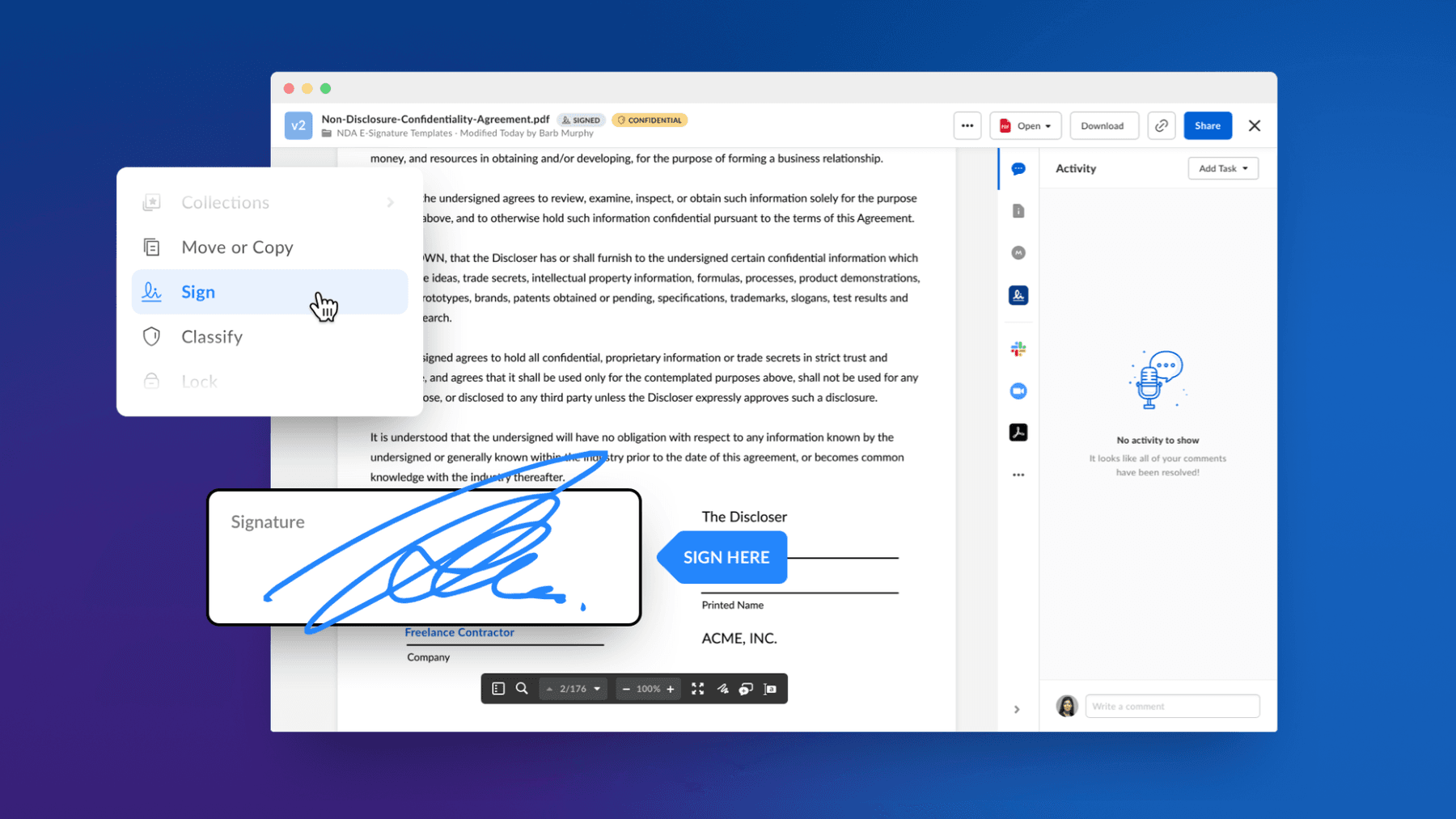
- Creates a Box Sign request
- Returns the iframeable embedded signer URL
The Sign request includes the borrower as signer:
const signRequest = await client.signRequests.createSignRequest({

  signers: [

    {

      email: signerEmail,

      role: "signer",

      embedUrlExternalUserId: externalUserId,

      loginRequired: false,

      suppressNotifications: true

    }

  ],

  emailSubject: "Credit Pull Authorization",

  emailMessage: "Please authorize the credit pull for your loan application.",

  parentFolder: { id: parentFolderId, type: "folder" },

  sourceFiles: [{ id: sourceFileId, type: "file" }]

});
Box Sign returns an iframeable URL for the signer. The app displays that URL in a modal, keeping the borrower inside the application experience while Box handles signature capture.
For local development, the app omits Sign redirect URLs when the origin is localhost or a private-network address. For production HTTPS origins, it can send completed and declined redirect URLs.
What we learned
In this example, we built a loan origination app that keeps the borrower experience simple while moving the document-heavy work into Box. Specifically, we used:
- Box UI elements to upload and view documents stored in Box
- Box AI to classify uploaded documents
- Box Sign to handle the final credit authorization
We followed a few best practices:
- Keep privileged Box operations on the server
- Issue downscoped tokens for browser UI elements
- Let each Box service handle the part of the workflow it is built for
Your application still owns the user journey, validation, routing, and business logic, but it doesn’t need to reinvent secure document infrastructure.
Next steps
From here, you can extend this demo in a few practical ways:
- Replace localStorage with a real database so borrower profiles, loan details, document status, and Sign request state are persisted server-side
- Add authentication and authorization around the dashboard so borrowers and internal loan officers only see the applications and documents they are allowed to access
- Use a prepared credit authorization template by setting BOX_CREDIT_AUTHORIZATION_FILE_ID, instead of generating a simple text file during the demo flow
- Verify Box Sign completion server-side using a webhook, callback, or polling flow before marking credit authorization as complete
- Expand the Box AI step from document classification into structured extraction, such as pulling income, employer, statement dates, or property details into a review queue
With those pieces in place, this pattern can move beyond a demo and become the foundation for production-grade document workflows in lending, insurance, onboarding, compliance, and any application where documents drive the next step.
Don’t forget to sign-up for your free Box developer account and clone the repo so you can try this yourself!