Sales workflows rarely stop at CRM data. At some point, a sales representative needs a real document: a business plan, pricing summary, deal justification, or approval packet. That document has to be generated from structured opportunity data, routed to the right approver, and tied back to the deal record when the process is complete.
What if you could chain Box Doc Gen and Box Automate via API to generate an approval document from CRM opportunity data, route it for review, and write the outcome back to Salesforce, without manual steps?
In this scenario, let’s assume that a sales representative wants to approve the opportunity and proceeds with an internal approval process. Here’s how the pattern works, step by step:
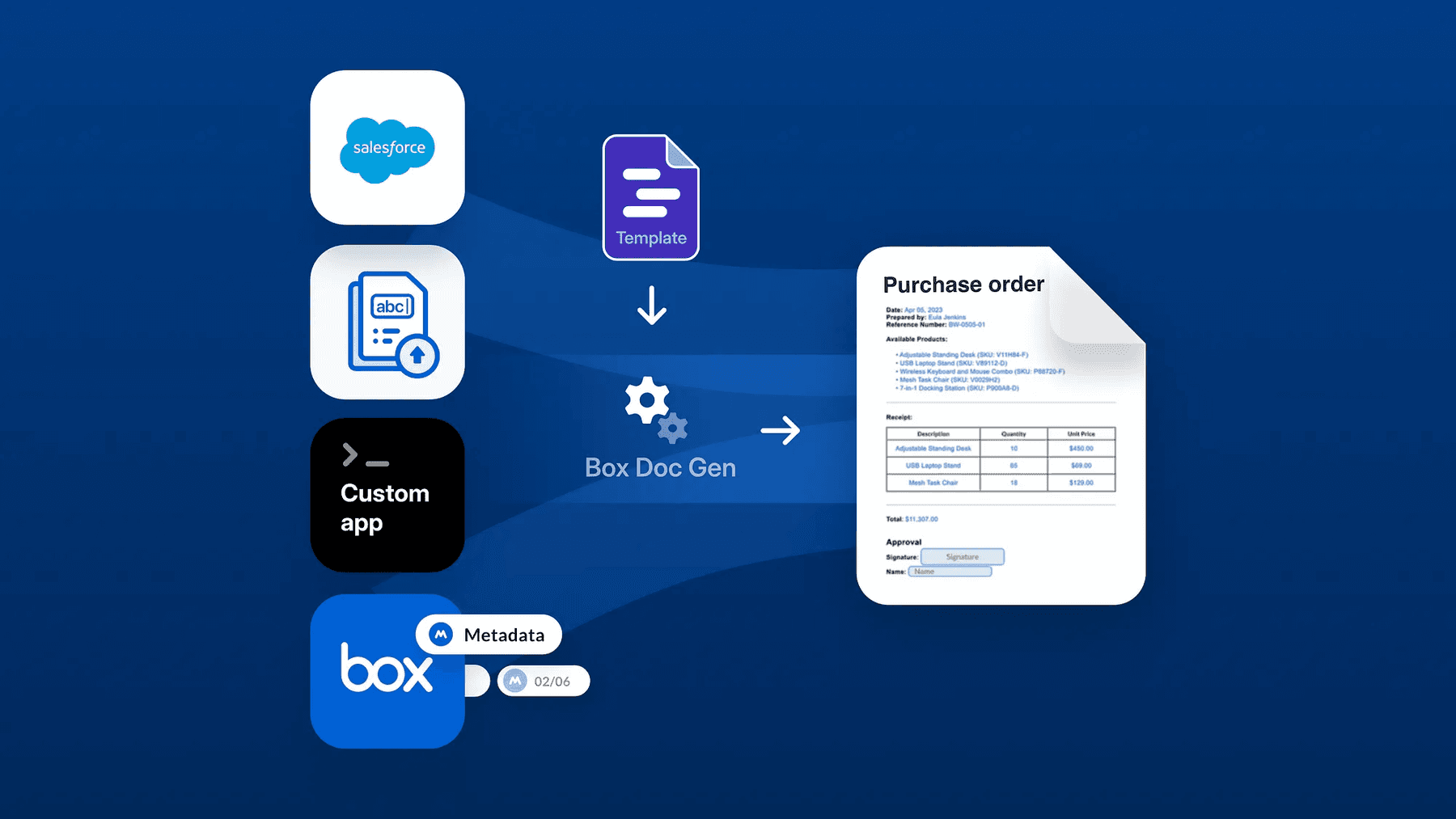
- Salesforce sends opportunity data to a custom Box Platform app, a lightweight backend layer between this CRM and Box
- The service calls Box Doc Gen to create a document from a template stored in Box and adds opportunity ID as a metadata
- Upon a webhook trigger, the service starts a Box Automate workflow with the generated file
- Box Automate sends the document to the right manager for approval in Box
- The approver reviews the document and either approves or rejects it
- Upon reviewer action, Box Automate leverages the HTTPS Request element and calls Salesforce back to update the opportunity
- As a last workflow step, Box Automate sends an email notification to sales representatives who initiated the workflow
Note: During the beta phase, the Start Automate workflow endpoint does not yet accept fields at runtime. To pass the opportunity ID into the workflow, this sample stores it as file metadata, which is accessible as a workflow variable.
Setup
Let’s focus on two main configuration pieces: a Box Platform app, and a Box Automate workflow.
Create and authorize a Box app
Your integration needs a Box app that can call both content APIs, for example Box Doc Gen and Automate endpoints.
- Create a custom app in the Box Developer Console. Client Credentials Grant is the simplest server-side option. If your organization prefers key-based server authentication, JWT is also a valid choice. For a quick prototype, a developer token can be enough to test the flow.
- Make sure the app is approved for the scopes including Write all files and folders stored in Box, and Box Doc Gen, and webhooks.

Enable Box Automate
In the Box Admin Console, enable Box Automate and Box Doc Gen, for all or selected users. Be sure to save your settings.

Additionally, from the Admin Console view, you can add the Connector — the API of your choice you’d like to POST data to. This could be a Salesforce custom domain (https://MyDomainName.my.salesforce.com), your custom backend, or any other CRM of choice. We’ll use this in the Box Automate HTTP Request element later on.

Build the Box Automate workflow
Once Box Automate is enabled in Admin Console, go to Box end user interface and create your first workflow.

For this scenario, the workflow should:
- Use a Manual Start trigger with a chosen folder. Although named “manual,” we’ll be using this trigger to initiate the workflow via Box API. Choose the folder where the generated documents are stored.

- Approval Task with Approved and Rejected branches, which process the current file passed via the API. Additionally, define the task assigner, task manager, and task message. The task message can include variables available within the workflow. Note, that if you’d like to process multiple documents at a time, you’ll need an additional loop workflow element.

- Approval and Reject branches include a custom HTTP Request element to call the CRM back. Let’s go over a few settings
Connector, which requires the Domain (the API base URL you want to call) and the connector name. Pick one that was added in the Admin Console Integrations tab.
Currently, the Start Automate workflow endpoint doesn’t yet accept runtime fields, and the Opportunity ID can’t be injected directly into the workflow at its start. To bypass this, save the ID in the file metadata field, which is available as a workflow variable:
- Endpoint: The example path can be: service/data/v60.0/sobjects/Opportunity/{{opportunity_id}}, where opportunity ID is a metadata variable associated with the currently processed file.

Furthermore define:
- HTTP Method: for sending data to your CRM choose PATCH
- Authorization and associated credentials
- Request headers, for example: Content-Type, application/json
- Request body: In this case, for simplicity, I have just passed the custom field, but you should adjust the information to match the CRM API

- Finally, merge both branches, and send notification to an email address. Specify who should be notified? In this case I’ve chosen to send the email to the Trigger:User, and use other workflow variables in the email body.

Be sure to save and activate your workflow before calling Box Automate API. Here’s an overview of the whole workflow:

Now let’s see how to call Box Automate API to start this workflow. First, list all available workflows using the List all Automate workflows endpoint. Keep in mind that this endpoint requires the versioning header.
curl -i -X GET "https://api.box.com/2.0/automate_workflows?folder_id=12345" \
     -H "box-version: 2026.0" \
     -H "authorization: Bearer <ACCESS_TOKEN>"
It’s important to inspect the response, as there are two IDs necessary to start the Automate workflow: the workflow_action ID and workflow ID.
{
  "limit": 20,
  "entries": [
    {
      "id": "WORKFLOW_ACTION_ID",
      "type": "workflow_action",
      "action_type": "run_workflow",
      "created_at": "2026-05-26T12:03:12.000Z",
      "updated_at": "2026-05-28T11:24:44.000Z",
      "created_by": {
        "id": "USER_ID",
        "type": "user",
        "name": "Olga Stefaniuk",
        "login": "[email protected]"
      },
      "updated_by": {
        "id": "USER_ID",
        "type": "user",
        "name": "Olga Stefaniuk",
        "login": "[email protected]"
      },
      "workflow": {
        "id": "WORKFLOW_ID",
        "type": "workflow",
        "name": "Demo workflow"
      }
    }
  ],
  "next_marker": null
}
With those two values and the file ID, we can initialize the Automate workflow using the second endpoint:
curl -i -X POST "https://api.box.com/2.0/automate_workflows/workflow_id/start" \
     -H "box-version: 2026.0" \
     -H "authorization: Bearer <ACCESS_TOKEN>" \
     -H "content-type: application/json" \
     -d ’{
       "workflow_action_id": "981",
       "file_ids": ["123"]
     }’
Build a custom integration with Box Doc Gen
Let’s see what the end-to-end flow looks like. Here are some one-time setup items:
- Create a Doc Gen template: A Word file with merge fields for opportunity data (name, amount, account, etc.). Go to product documentation related to this product, to get step-by-step instructions. As noted above, fields at start are not yet supported in beta, therefore you’ll need to call Box Doc Gen outside of the workflow.
- Create an enterprise metadata template: Include a field opportunity_id (string). Note the template file ID for your app config. If you haven’t worked with Box metadata templates be sure to check this developer guide. Apply metadata template on the folder and its subfiles defined at Box Automate Manual start element. Note the template file ID for your app config.
- If you haven’t already, call List Automate workflows defined as callable actions, to get the workflow_action_id and workflow_id. You can store those IDs as environment variables in your project.
Overall, Box Doc Gen and Box Automate are chained through two Box webhooks, not one linear API response. Let’s see what happens once opportunity data is passed to the Box app and what steps are needed for this use case.
- Initiate Box client
import { BoxClient, BoxDeveloperTokenAuth } from "box-node-sdk/sdk-gen";

export function createBoxClient() {
  const token = process.env.BOX_ACCESS_TOKEN;
  if (!token) throw new Error("Set BOX_ACCESS_TOKEN.");
  return new BoxClient({ auth: new BoxDeveloperTokenAuth({ token }) });
}
- Create Box webhooks, with a DOCGEN_DOCUMENT_GENERATION_SUCCEEDED trigger and METADATA_INSTANCE.UPDATED or METADATA_INSTANCE.CREATED.
export async function setupWebhooks(client, { templateFileId, destinationFolderId, address }) {
  const docgen = await client.webhooks.createWebhook({
    target: { id: templateFileId, type: "file" },
    address,
    triggers: ["DOCGEN_DOCUMENT_GENERATION_SUCCEEDED"],
  });
  const metadata = await client.webhooks.createWebhook({
    target: { id: destinationFolderId, type: "folder" },
    address,
    triggers: ["METADATA_INSTANCE.UPDATED", "METADATA_INSTANCE.CREATED"],
  });
  return { docgenWebhookId: docgen.id, metadataWebhookId: metadata.id };
}
- Add webhook handlers
import { parseValidatedWebhookEvent } from "./validate-webhook.js";
import { processDocgenSucceededEvent } from "./process-docgen-webhook.js";
import { processMetadataInstanceEvent } from "./process-metadata-webhook.js";

export async function processBoxWebhook(client, rawBody, headers, ctx) {
  const event = await parseValidatedWebhookEvent(rawBody, headers);

  if (event.trigger === "DOCGEN_DOCUMENT_GENERATION_SUCCEEDED") {
    return processDocgenSucceededEvent(
      client,
      event,
      ctx.opportunityIdByBatchId,
      ctx.metadataTemplateKey,
    );
  }

  const result = await processMetadataInstanceEvent(
    client,
    event,
    { ...ctx.automateWorkflow, metadataTemplateKey: ctx.metadataTemplateKey },
    ctx.automateStartedForFile,
  );
  if (result.handled === false) return result;
  return result;
}
- Once the opportunity data enters the app, format opportunity data to match Box Doc Gen request body and call Generate document using Box Doc Gen template endpoint with the following data:
- box-version: 2025.0
- The template file ID
- destination_folder: ID (needs to match the one specified in the workflow Manual trigger)
- The opportunity data to merge into the template within the document_generation_data array.
import { buildOpportunityTemplatePayload } from "../opportunity-to-docgen.js";

export async function generateDocgenBatch(
  client,
  { templateFileId, destinationFolderId, opportunity },
) {
  return client.docgen.createDocgenBatchV2025R0({
    file: { id: templateFileId, type: "file" },
    inputSource: "api",
    destinationFolder: { id: destinationFolderId, type: "folder" },
    outputType: "pdf",
    documentGenerationData: [
      {
        generatedFileName: `${opportunity.name} - Approval Packet`,
        userInput: buildOpportunityTemplatePayload(opportunity),
      },
    ],
  });
}
- On DOCGEN_DOCUMENT_GENERATION_SUCCEEDED, capture the file ID and apply metadata to the created document with the opportunity ID. Metadata stores opportunity_id because Box Automate workflow variables can be read as a variable. This step can be omitted, once fields at start are available.
export async function applyOpportunityMetadata(
  client,
  { fileId, metadataTemplateKey, opportunityId },
) {
  await client.fileMetadata.createFileMetadataById(fileId, "enterprise", metadataTemplateKey, {
    opportunity_id: opportunityId,
  });
}


import { applyOpportunityMetadata } from "./apply-file-metadata.js";

export async function processDocgenSucceededEvent(
  client,
  event,
  opportunityIdByBatchId,
  metadataTemplateKey,
) {
  const info = [event.additional_info].flat()[0] ?? {};
  const { generated_file_id: fileId, batch_id: batchId } = info;
  if (!fileId) throw new Error("No generated_file_id in webhook payload.");

  const opportunityId = batchId && opportunityIdByBatchId.get(batchId);
  if (batchId) opportunityIdByBatchId.delete(batchId);

  if (opportunityId) {
    await applyOpportunityMetadata(client, { fileId, metadataTemplateKey, opportunityId });
  }

  return { boxFileId: fileId, opportunityId: opportunityId ?? null };
}
- Box Automate API can be triggered once the metadata is updated on the newly created file with following data:
- box-version: 2026.0
- file_ids: generated file ID
- workflow_id
- workflow_action_id
const METADATA_TRIGGERS = new Set(["METADATA_INSTANCE.UPDATED", "METADATA_INSTANCE.CREATED"]);

export async function processMetadataInstanceEvent(
  client,
  event,
  { workflowId, workflowActionId, metadataTemplateKey },
  automateStartedForFile,
) {
  if (!METADATA_TRIGGERS.has(event.trigger)) return { handled: false };

  const fileId = event.source?.type === "file" ? event.source.id : null;
  if (!fileId) return { handled: false, reason: "not a file event" };

  const metadata = await client.fileMetadata.getFileMetadataById(
    fileId,
    "enterprise",
    metadataTemplateKey,
  );
  if (!metadata.opportunity_id) return { handled: false, reason: "no opportunity_id" };

  if (automateStartedForFile.has(fileId)) {
    return { boxFileId: fileId, opportunityId: metadata.opportunity_id, skipped: true };
  }

  await client.automateWorkflows.createAutomateWorkflowStartV2026R0(workflowId, {
    workflowActionId,
    fileIds: [fileId],
  });
  automateStartedForFile.add(fileId);

  return { boxFileId: fileId, opportunityId: metadata.opportunity_id };
}
Now that you have the full picture, define your environment variables:
PORT=8787
APP_SHARED_SECRET=replace-me

# Box auth (developer token for local demo)
BOX_ACCESS_TOKEN=

# Doc Gen — template file ID and output folder (must match Automate Manual Start folder)
BOX_DOCGEN_TEMPLATE_FILE_ID=
BOX_DOCGEN_DESTINATION_FOLDER_ID=

# Webhooks — public HTTPS URL ending in /box/webhooks; primary key from webhook create response
BOX_DOCGEN_WEBHOOK_URL=https://your-host.example.com/box/webhooks
BOX_WEBHOOK_PRIMARY_KEY=

# Enterprise metadata template ID (Admin Console); field key must be opportunity_id
BOX_METADATA_TEMPLATE_ID=

# Automate — from GET /2.0/automate_workflows?folder_id=... (box-version: 2026.0)
BOX_AUTOMATE_WORKFLOW_ID=
BOX_AUTOMATE_WORKFLOW_ACTION_ID=
Once the workflow starts, Box Automate handles the approval sequence, and sends the defined data back to the CRM once the task is complete. Finally, let’s tie everything together with a server that accepts the opportunity data and initiates the whole process.
import { createServer } from "node:http";
import { buffer } from "node:stream/consumers";
import { createBoxClient } from "./src/box/client.js";
import { setupWebhooks } from "./src/box/setup-webhooks.js";
import { resolveMetadataTemplateKey } from "./src/box/resolve-metadata-template.js";
import { generateDocgenBatch } from "./src/box/generate-docgen-batch.js";
import { processBoxWebhook } from "./src/box/process-box-webhook.js";

const client = createBoxClient();
const command = process.argv[2];

function automateWorkflowFromEnv() {
  const workflowId = process.env.BOX_AUTOMATE_WORKFLOW_ID;
  const workflowActionId = process.env.BOX_AUTOMATE_WORKFLOW_ACTION_ID;
  if (!workflowId || !workflowActionId) {
    throw new Error("Set BOX_AUTOMATE_WORKFLOW_ID and BOX_AUTOMATE_WORKFLOW_ACTION_ID.");
  }
  return { workflowId, workflowActionId };
}

if (command === "setup-webhook") {
  console.log(
    JSON.stringify(
      await setupWebhooks(client, {
        templateFileId: process.env.BOX_DOCGEN_TEMPLATE_FILE_ID,
        destinationFolderId: process.env.BOX_DOCGEN_DESTINATION_FOLDER_ID,
        address: process.env.BOX_DOCGEN_WEBHOOK_URL,
      }),
      null,
      2,
    ),
  );
} else {
  const metadataTemplateKey = await resolveMetadataTemplateKey(client, {
    templateId: process.env.BOX_METADATA_TEMPLATE_ID,
  });
  const automateWorkflow = automateWorkflowFromEnv();
  console.log("Automate workflow:", automateWorkflow);
  console.log("Metadata template key:", metadataTemplateKey);

  const webhookState = {
    metadataTemplateKey,
    automateWorkflow,
    opportunityIdByBatchId: new Map(),
    automateStartedForFile: new Set(),
 };

 createServer(async (request, response) => {
   const json = (status, body) => {
      response.writeHead(status, { "content-type": "application/json" });
      response.end(JSON.stringify(body));
   };
   try {
      const body = await buffer(request);
      if (request.method === "POST" && request.url === "/api/opportunity-approval") {
        if (
          process.env.APP_SHARED_SECRET &&
          request.headers["x-shared-secret"] !== process.env.APP_SHARED_SECRET
        ) {
          json(401, { error: "Invalid shared secret." });
          return;
        }
        const payload = JSON.parse(body.toString());
        const opportunity = payload.opportunity || payload;
        const batch = await generateDocgenBatch(client, {
          templateFileId: process.env.BOX_DOCGEN_TEMPLATE_FILE_ID,
          destinationFolderId: process.env.BOX_DOCGEN_DESTINATION_FOLDER_ID,
          opportunity,
        });
        webhookState.opportunityIdByBatchId.set(batch.id, opportunity.id);
        json(202, { batchId: batch.id });
        return;
      }
      if (request.method === "POST" && request.url === "/box/webhooks") {
        json(200, await processBoxWebhook(client, body, request.headers, webhookState));
        return;
      }
      json(404, { error: "Not found." });
    } catch (error) {
      json(500, { error: error.message });
    }
  }).listen(Number(process.env.PORT || 8787), () =>
    console.log(`http://localhost:${process.env.PORT || 8787}`),
  );
}
Box Automate does not yet include UI-specific elements for error handling. In case an opportunity ID is missing, in this sample, we catch this directly in the app’s code. However, if the HTTP Request element fails in Box Automate, the whole workflow fails. The user who initiated the workflow gets an email notification with the workflow status as a variable.
Before moving to production, switch to CCG or JWT authentication, add a security layer, store environment variables securely, and validate incoming webhooks.
This pattern applies across industries and can be extended to other document types and CRM systems. The specific document might be called a business plan, a deal summary, an approval memo, or a pricing exception packet. The workflow is consistent: Business context starts in the CRM, the approval process happens around a document, and the final status needs to make its way back to the system the team already uses.
Share your feedback on Box Automate in the Box Community Forum. We’d love to hear how you’re using it!