Tap into the combination of Box Hubs for document management and Box AI API for content analysis. It helps streamlines workflows, allowing teams to make more informed decisions based on existing materials.
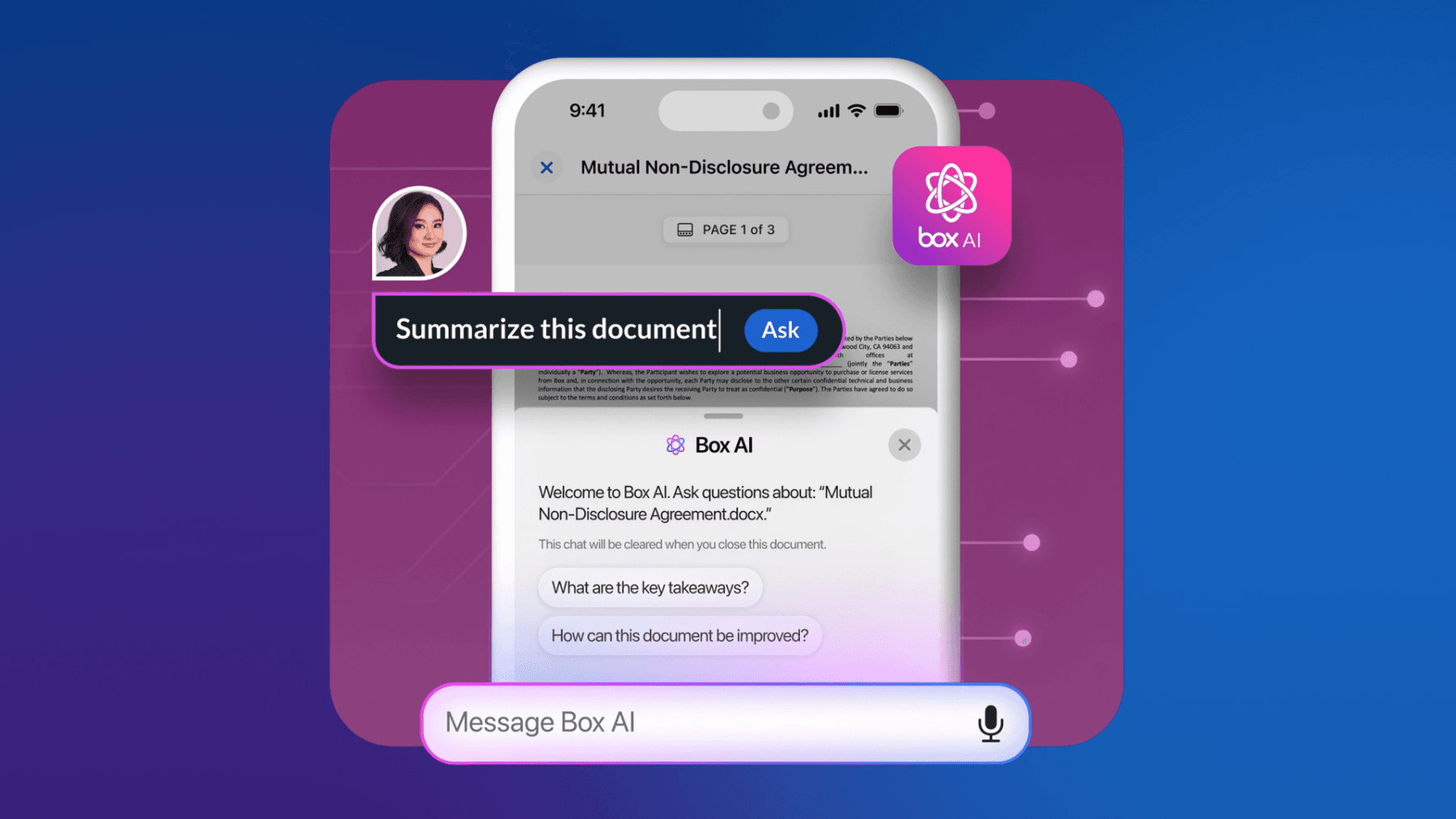
Box AI API and Box Hubs enable developers and organizations to build intelligent content management applications that can understand and provide insights from versatile enterprise documents at scale.

Some of the common use cases for Box Hubs are asset management hubs, team and department sites, sales enablement portals, marketing portals, onboarding hubs, and more.
Let’s take a closer look at the marketing portal use case. A marketing team creates a dedicated Box Hub to centralize all product launch materials, providing team members with organized access to campaign documents. Using the Box AI API, the team can extract key insights from existing marketing content, such as identifying common themes across successful campaigns or summarizing lengthy market research reports.
How to enable Box Hubs and Box AI API
You can enable Box AI API and Box Hubs in the Box Admin Console. Follow these steps:
- Go to Enterprise Settings,
- Select the Box AI tab,
- Enable the configuration under the option labeled: Box AI for Hubs disabled for all managed users,
- Enable the configuration under the option labeled: Box AI for API enabled for all users.
Box AI API and Box Hubs is available to all Enterprise Plus and Enterprise Advanced customers.

Start interacting with Box AI API
If you’re new to the Box Platform, visit our developer guide to learn how to create your first Box Platform app.
To perform a Box AI API call, you need a Box Platform app with the appropriate scope enabled. Navigate to the Box Developer Console, select your chosen Box Platform app, go to the Configuration tab, scroll down to the Application Scopes section, and enable the Manage AI scope.

When the application’s scopes or access level change, the application needs to be re-authorized. Check more details in developer documentation.
Query Box Hubs with Box AI API
In order to perform a Box AI Ask query on Box Hub, there are some things to keep in mind:
itemsobject addtypeparameter withhubsvalue,- include Box Hub id in the same
itemsobject (you can find Box Hub id in the URL within the main Box web app), modehas to besingle_item_qa,promptwill include a question to Box Hub content.
The cURL snippet would be as follows:
curl -i -L POST "https://api.box.com/2.0/ai/ask" \
     -H "content-type: application/json" \
     -H "authorization: Bearer TOKEN" \
     -d '{
         "mode": "single_item_qa",
         "prompt": "PROMPT",
         "items": [
            {
            "type": "hubs",
            "id": "HUB_ID"
            }
         ]
      }'
Keep in mind there are some known limitations, such as querying being limited to 10,000 files per Box Hub. Additionally, non-English languages may produce lower quality results. For more details and up to date information, check this support page.
This Box AI API request is performed with default Box AI settings, and will return following response:
{
  "answer": "ANSWER",
  "created_at": "DATE",
  "completion_reason": "done",
  "ai_agent_info": {
    "models": [{
      "name": "mlp__bge_large_gpu",
      "provider": "mlp",
      "supported_purpose": "embedding"
    }, {
      "name": "azure__openai__gpt_4o_mini",
      "provider": "azure"
    }],
    "processor": "long_text_multi"
  }
}
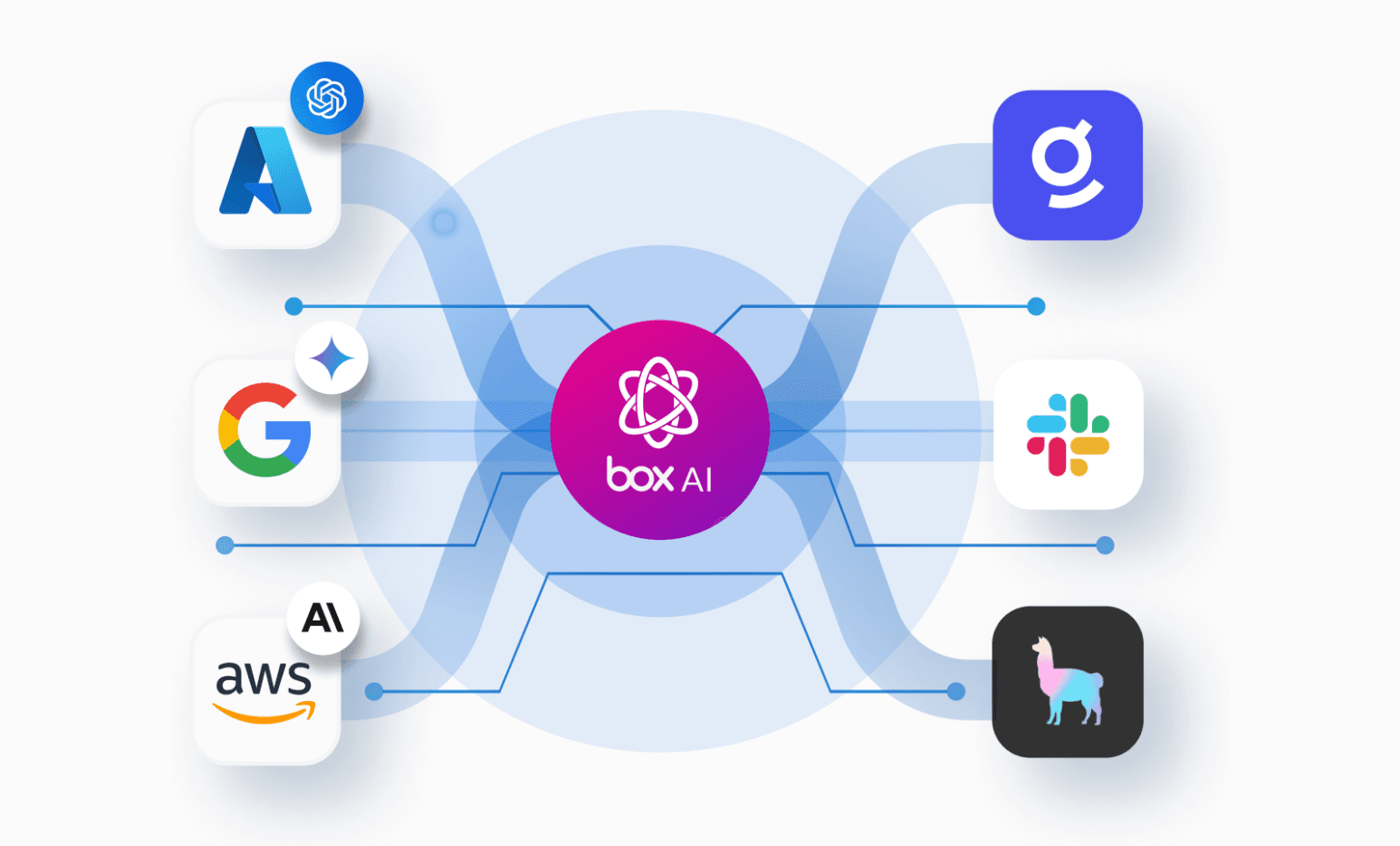
For an extensive tutorial on how to overwrite the default Box AI API setup — such as changing the LLM endpoint parameters, adjusting the number of tokens for completion, or selecting a different LLM model — check out Alex Novotny's blog post.
Embed Box Hubs in your web app
Alternatively, Box Hubs can also be directly embedded in your web apps. This solution also enables a native Box AI experience. You can generate and paste an iframe code snippet directly into your web app’s source code. For detailed instructions, check out my previous blog post.