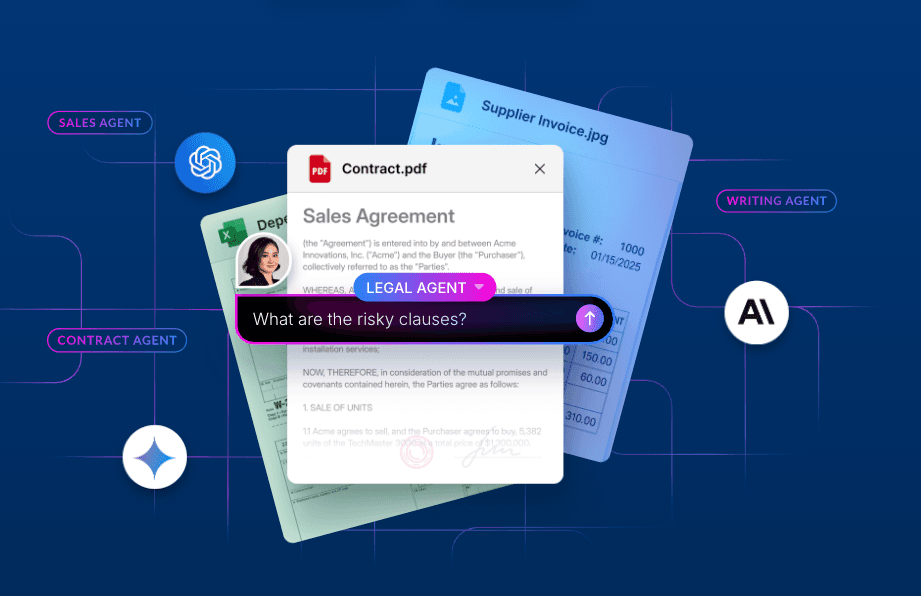
The embeddable Box Hubs AI Chat provides intelligent insights based on up to 20,000 files per hub. By including this iframe element directly into custom apps or portals like Salesforce, end users can ask questions, get advanced AI-generated answers without distractions, and leverage advanced LLMs from providers like OpenAI, Google, and Anthropic.
Think of this approach as giving your app a knowledgeable assistant that understands your company's knowledge base, without the complexity of building and maintaining custom RAG systems or storing content in a vector database.
By following this guide, with just a few simple steps, you’ll have a complete RAG solution embedded in Salesforce using Box Hubs AI Chat, Visualforce, and Lightning App Builder.

As an example, consider an account executive at Acme Corporation who manages customer relationships in Salesforce. With Box Hubs AI Chat embedded on their account pages, they can ask questions like, "What marketing campaigns are planned for Q2?" or "What customer events are we hosting next quarter?" The AI instantly provides answers based on marketing plans, campaign briefs, and event documentation stored in the company's Box Hub — all without leaving the Salesforce Account record.
Keep in mind that this use case can be further expanded with a tight integration between storing customer- and opportunity-related data in Box and by leveraging even more contextual insights.
Box Hubs AI Chat in a nutshell
Box Hubs AI Chat is an embeddable UI experience powered by the data within a specific Box Hub. Unlike embedding a full Box Hub, which includes navigation and file browsing, the AI Chat eliminates the need for browsing content and provides contextual answers from your organization's documents in seconds.
This approach is perfect for use cases like:
- Sales intelligence: Query competitive battle cards, product specifications, and pricing documentation directly from the Opportunity pages while you’re on customer calls.
- Support knowledge: Access troubleshooting guides and technical documentation from Case pages, getting instant answers to complex support questions.
- Account context: Query meeting notes, contracts, and project documentation from account pages, quickly gathering context before customer interactions.
- Product information: Access specifications, roadmaps, and research documentation embedded on custom product objects to instantly answer feature and timeline questions.
- Marketing insights: Get answers related to planned email and social media campaigns, customer-facing events, and conferences.
The solution also includes AI models’ dropdowns with LLMs from various providers and advanced thinking models. It comes in two embedding modes: full chat widget or the chat button, which opens on click.
Chat Button mode
The Chat Button mode adds a floating button to your page that opens the chat interface when clicked. It’s best for applications where you want chat to be available but not always visible.

Chat Widget mode
The Chat Widget mode embeds the full chat interface directly on your page using an iframe, displaying it immediately on page load. It’s best for dedicated help and support pages, knowledge base interfaces, and dashboard layouts with persistent panels.

In this tutorial we'll focus on embedding the chat widget on a Salesforce Lightning Experience in a few simple steps. No coding experience is required to complete this guide.
Prerequisites
Before starting the integration, ensure you have the following:
Box requirements:
- Box AI for Hubs enabled at the enterprise level
- At a minimum, viewer permissions on the Hub you plan to embed
- Ability to generate a shared link to the Box Hub or Salesforce users added as collaborators on the Box Hub (via an email invitation)
Salesforce:
- Lightning Experience enabled
- Access to Setup with permission to create Visualforce pages
- System Administrator or Customize Application permissions
Overview
The integration involves four main steps:
- Preparing your Box Hub and copying the generated iframe code.
- Creating a Visualforce page with the AI Chat iframe.
- Configuring Salesforce security settings.
- Adding the component to the Lightning record page.
Step 1: Generate the Box Hub embed code
Let’s start with generating the iframe code in Box.

Navigate to your Box Hub, click the ellipsis menu in the upper-right corner, then select Embed from the dropdown menu.

In the embed modal, select the Hub AI Chat tab. You'll see two embedding options: Chat button and Chat widget. For this Salesforce integration, select the Chat widget mode, which displays the full chat interface directly on the page. You can modify the size to your needs with custom dimensions in pixels.
Box generates the iframe code snippet containing your Hub's embed URL. Copy this code, as you'll be using it in the next step when creating the Visualforce page.
Here’s an example snippet:
<iframe src="https://app.box.com/ai-chat?showCloseButton=false&hubId=HUB_ID&sharedLink=SHARED_LINK" width="400" height="600" frameborder="0" allowfullscreen webkitallowfullscreen msallowfullscreen allow="clipboard-read *; clipboard-write *"></iframe>Managing user access
For users to interact with the AI Chat, they must have access to the Box Hub and to Box AI features for Hubs. If you want to explicitly control users allowed to access the hub, remove the sharedLink parameter from the src URL and add your Salesforce users as collaborators by clicking the Share button in the top right of the Hub view, adding team members' email addresses as collaborators and assigning appropriate permission levels. The viewer access is sufficient for AI Chat functionality.
Alternative: Using Box for Salesforce integration (authenticated access)
For organizations that require more sophisticated security features, the official Box for Salesforce integration from AppExchange provides authenticated access with seamless single sign-on and native Lightning components. This approach requires installing the Box for Salesforce package and configuring a Box service account, but offers enterprise-grade features like automated folder creation, Box Sign integration, and granular permission controls.
Step 2: Create the Visualforce page
Now you'll create a Visualforce page in Salesforce that embeds the Box Hubs AI Chat interface.

Navigate to advanced settings by clicking the gear icon in the upper right corner and selecting Open Advanced Setup. A new browser window will open.
In the Quick Find search box on the left hand side, search for Visualforce Pages and select it from the results. Click New to create a new Visualforce page.

Configure the page details and make sure you check the box for "Available for Lightning Experience, Experience Builder sites, and the mobile app". This is an important step that will allow you to access this component from the Lightning Pages setup.

In the Visualforce Markup section, paste the following code structure, and replace the src value for the link generated in the Box Hub interface. You can also update the size of the page by adjusting the width and height.
<apex:page showHeader="false" sidebar="false">
    <apex:iframe src="https://app.box.com/ai-chat?showCloseButton=false&hubId=HUB_ID&sharedLink=SHARED_LINK"
     scrolling="false"
     width="600"
     height="600px"/>
</apex:page>
⚠️ Make sure you replace HUB_ID and YOUR_SHARED_LINK_HASH with the actual values from your Box Hub embed code.
Click Save and verify your AI Chat works in the preview mode.
Step 3: Configure Salesforce security settings
Salesforce requires explicit permission to load external content in iframes through Trusted URLs. Therefore, Box must be whitelisted before the Box Hubs AI Chat can be displayed within a Salesforce page.

Navigate to AdvancedSetup and search for Trusted URLs in the Quick Find box. Click New Trusted URL and configure the following:
- Trusted Site Name: Box
- Trusted Site URL: https://app.box.com
- Active: Checked
- Directives: Select all available contexts:
- connect-src (enables API calls)
- frame-src (enables iframe embedding)
- img-src (enables images)
- script-src (enables JavaScript)
- style-src (enables CSS styling)
Once the above is complete, click Save.
Step 4: Add AI chat component to Lightning Pages
Lastly, we need to include the Visualforce Page containing the Box Hubs AI chat in a Lightning Page.

In order to do so, search for the Lightning App Builder in the Quick Find search bar. Pick the page where you want to include the component. In this example, we’ll be editing the Account Record Page. Let’s click this record and, under the Lightning Page Detail record, click Edit. A new editor experience will show up in the same browser window.
Pick a slot where you want to include the AI chat, and from the left-hand side panel, choose Visualforce. In the right-hand side panel, choose the component in the Visualforce Page Name select. You might want to alter the height to match the chat size defined in earlier steps. Once this is ready, click Save.
Conclusion
By embedding the Box Hubs AI Chat in Salesforce, you’ve created a seamless experience which enables users to leverage AI-powered document intelligence without leaving their workflow. This integration represents a powerful step toward making organizational knowledge more accessible and actionable.
We can’t wait to hear your feedback regarding this experience on our Box Developer forum.
Additional resources
- Box Hubs AI Chat Embedding
- Salesforce Visualforce Developer Guide
- Lightning App Builder Guide
- CSP Trusted Sites Documentation
Box Developer Blog - Salesforce Integration Series
If you’d like to explore more possibilities of integrating Box and Salesforce, check out our Box Developer blog and articles dedicated to this area.
- Getting Started with Box for Salesforce Development: Part 1 - Complete setup guide for the Box for Salesforce managed package with developer toolkit customizations
- Getting Started with Box for Salesforce Development: Part 2 - Advanced customizations including automatic folder creation and test classes
- Box + Salesforce Flow Tutorial - Using Salesforce Flows for low-code/no-code automation with Box
- Box + Salesforce: Flows with Metadata - Syncing Salesforce data to Box metadata templates
- Box + Salesforce: Screen Flows with Experience Cloud - Building customer-facing Box upload experiences in Salesforce portals
- Box + Salesforce: Box Sign Writeback Flow - Automatically updating Salesforce records based on Box Sign inputs
- Box + Salesforce: Flows with Slack Integration Mappings - Connecting Box, Salesforce, and Slack for automated content workflows
- Enterprise Automation with Box, Salesforce and DocuSign APIs - Building document-centric onboarding workflows across multiple platforms