Financial research usually begins with documents and ends with structured data. A 10-K (a detailed annual financial report for publicly traded companies in the United States) contains audited financials, segment details, and pages of risk disclosures. Another content piece, the earning deck, adds the latest quarterly information and leadership guidance. The useful information is there, but it’s spread across two different sources and still needs to reach a memo, a database, or both.
Let’s break this into a few smaller steps. We’ll build a small Python workflow that:
- Uploads a 10-K and earnings deck to Box.
- Extracts revenue period, revenue amount, year-over-year growth, segments, guidance, and risk factors.
- Generates a one-page investment memo with source references.
- Saves the memo to Box and creates a company-only shared link.
- Optionally sends the extraction payload to Snowflake for cross-period analysis.
Box account requirement: The demo by default uses Box Doc Gen, which is available for Box Enterprise Advanced. While using a Box free developer account, adjust the demo flow and create a simple markdown file with injected values. Let’s jump in!
Demo overview
The 10-K and earnings deck remain in Box throughout the content workflow. Box Extract turns each file into a predictable JSON object, optionally returning a confidence score and source reference for every extracted field. Then the script reshapes that JSON for a one-page Box Doc Gen template or a markdown file, and based on that a one-page memo is created in Box.
The second part of this demo leverages a Snowflake connector that inserts the data into a structured table. Why send the JSON to Snowflake when the memo already exists in Box?
The two outputs (unstructured and structured) play different roles. The PDF is designed for a person to read one company and reporting period at a time. Snowflake turns repeated extractions into a comparable history so analysts can track guidance changes between quarters, compare segment growth across companies, identify new risk disclosures, join the results with portfolio or market data, and trigger dashboards or review alerts. The payload retains Box file IDs and source references so an analytical result can still be traced back to the governed source document in Box.
Prerequisites
For this demo, you’ll need:
- Python 3.11 or later
- Access to a Box Enterprise Advanced account with Box Extract and Box Doc Gen enabled, or a free developer account
- A Box application with these scopes enabled (for CCG and JWT apps re-authorize the app after changing the scopes):
- Read all files and folders stored in Box
- Write all files and folders stored in Box
- Manage AI
- Manage Doc Gen (optional for free developer account path). If you decide to use the Box Doc Gen template, an enterprise admin must enable this feature in the Box Admin Console.
- A short-lived Box developer token
- Optionally, if you’d like to follow the second part of this tutorial: a Snowflake account and permission to create and insert into a table.
For a focused tutorial, use a developer token, which is valid for one hour and can be revoked. In a production service, use your approved server-side authentication method instead.
To get started, clone this repo and install the dependencies:
python3 -m venv .venv
source .venv/bin/activate
pip install -r requirements.txt
cp .env.example .env
For your convenience the demo repository includes:
- sample 10-K PDF and an earnings deck,
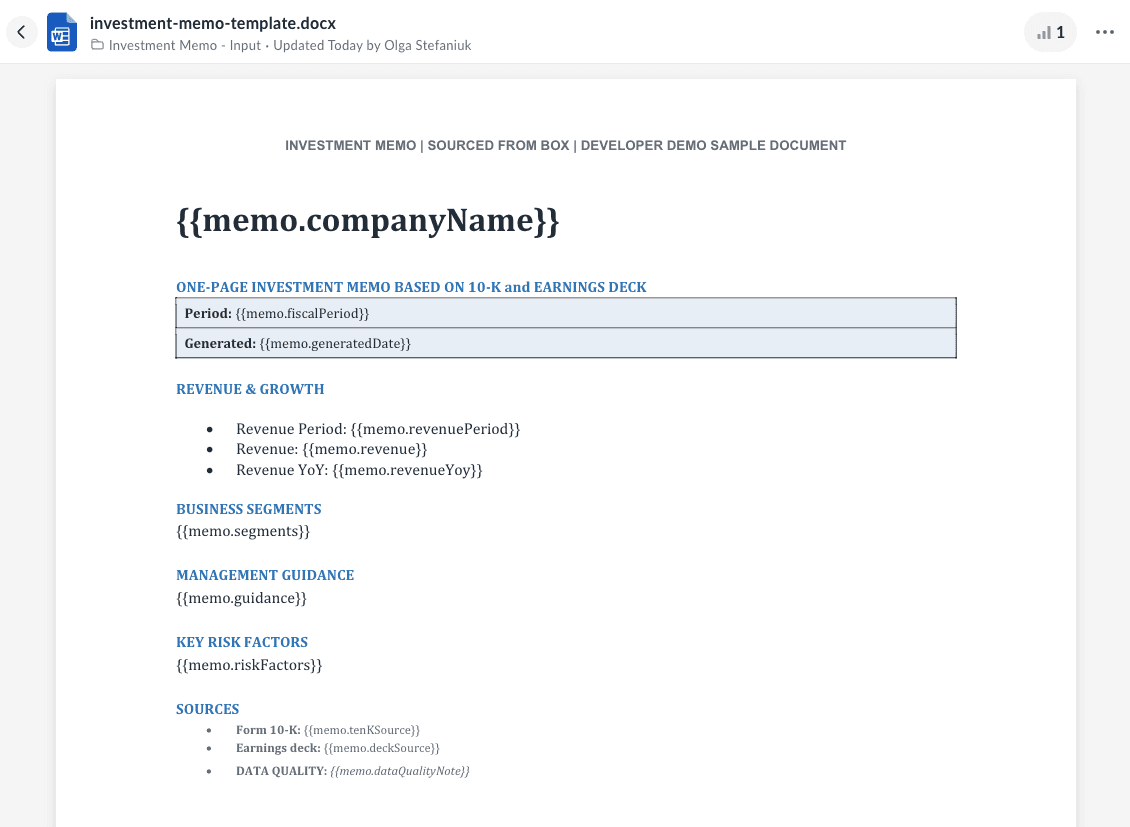
- an investment-memo-template.docx, so you only need to upload it to Box and mark it as a Doc Gen template (see the Box Doc Gen overview and getting-started guide for the current entitlement and setup steps)
a seed script that sets up the demo folders and uploads sample documents.
Important: if you decide to upload different files, be sure that you collaborate in the app's service account.
In the env file add your developer token, which can be found in the Developer Console under your App Details > Access. Click generate developer token and copy the value.
Next run the setup script:
python3 seed_box.py --write-envThat creates (or reuses) input/output folders, uploads investment-memo-template.docx, marks it as a Doc Gen template, and writes ID values into .env file.
BOX_DEVELOPER_TOKEN=
BOX_INPUT_FOLDER_ID=
BOX_OUTPUT_FOLDER_ID=
BOX_DOCGEN_TEMPLATE_FILE_ID=
TEN_K_PATH=./data/company-10-k.pdf
EARNINGS_DECK_PATH=./data/company-earnings-deck.pdf
# Long 10-K Extract requests often exceed the SDK default of 60 seconds.
# BOX_READ_TIMEOUT_MS=900000
Running the sourced investment memo document workflow
You’ve completed the base set up for this demo, and can run the script with the following command:
# For workflow that involves Box Doc Gen run:
python3 demo.py
# For workflow based on markdown run:
python3 demo.py --markdown
This script runs consecutive steps that:
- Upload the source documents to the created folders with Box Upload API, or check if the documents have been already uploaded.
- Extract financial data and its references so the 10-K file and the earning deck are analyzed against a predefined metadata template:
The structured extraction endpoint lets us define the fields and types you expect to pull from that document. For this demo, all memo sections are compact strings. The prompts set short word limits so the final document stays on one page. Here’s one field definition:
CreateAiExtractStructuredFields(
    key="revenue_growth",
    display_name="Revenue growth",
    description="Reported revenue and year-over-year growth.",
    prompt=(
        "Use only figures stated in the document. Include period, revenue, and "
        "year-over-year growth when available. Maximum 35 words. If absent, "
        "return 'Not stated in this source'."
    ),
    type="string",
)
The complete schema also requests company_name, fiscal_period, segments, guidance, and risk_factors. A 10-K is a long and complex document, so the sample selects Box Enhanced Extract Agent. The response also can include the confidence scores and references. This is especially useful when a memo needs to remain traceable to the original filing.
enhanced_extract = AiAgentReference(
    id="enhanced_extract_agent",
    type=AiAgentReferenceTypeField.AI_AGENT_ID,
)

response = client.ai.create_ai_extract_structured(
    [AiItemBase(id=file_id)],
    fields=EXTRACT_FIELDS,
    ai_agent=enhanced_extract,
    include_confidence_score=True,
    include_reference=True,
)- Next, shape the JSON with extracted data for Box Doc Gen or a Markdown file
Box Doc Gen replaces tags in a Microsoft Word template with values from our JSON. The sample template uses paths such as:
{{memo.companyName}}
{{memo.revenueGrowth}}
{{memo.segments}}
{{memo.guidance}}
{{memo.riskFactors}}
{{memo.tenKSource}}
{{memo.deckSource}}
For each memo field, the script chooses the first meaningful value from the preferred source. It also adds authenticated Box file URLs and the field-level references returned by Extract.
memo_payload = {
    "memo": {
        "companyName": pick(deck, ten_k, "company_name"),
        "fiscalPeriod": pick(deck, ten_k, "fiscal_period"),
        "revenueGrowth": pick(deck, ten_k, "revenue_growth"),
        "segments": pick(deck, ten_k, "segments"),
        "guidance": pick(deck, ten_k, "guidance"),
        "riskFactors": pick(ten_k, deck, "risk_factors"),
        "tenKSource": f"{ten_k_file.name} | https://app.box.com/file/{ten_k_file.id}",
        "deckSource": f"{deck_file.name} | https://app.box.com/file/{deck_file.id}",
    }
}- Generate the one-page memo in Box - either based on a Box Doc Gen file or a simple markdown file, depending on the account type you’re using.
The following endpoint creates an asynchronous Box Doc Gen job. As entry variables, it accepts the template file, destination folder, output type, and our normalized JSON created in the previous step:
batch = client.docgen.create_docgen_batch_v2025_r0(
    FileReferenceV2025R0(id=template_file_id),
    "api",
    CreateDocgenBatchV2025R0DestinationFolder(id=output_folder_id),
    "pdf",
    [
        DocGenDocumentGenerationDataV2025R0(
            generated_file_name=generated_name,
            user_input=memo_payload,
        )
    ],
)
The response gives us a batch ID. Instead of searching a folder by filename, the demo polls that batch's jobs and uses the output_file.id returned by the completed job. This avoids confusing the new memo with a file from an earlier run:
jobs = client.docgen.get_docgen_batch_job_by_id_v2025_r0(batch.id)
job = jobs.entries[0]
if job.status.value == "completed":
    memo_file_id = job.output_file.id
For a production workflow, replacing polling with the Box Doc Gen webhook events for generation started, succeeded, and failed.
- Once the memo is ready in the Output folder, a company-only shared link is created:
shared_file = client.shared_links_files.add_share_link_to_file(
    memo_file_id,
    "id,name,shared_link",
    shared_link=AddShareLinkToFileSharedLink(
        access=AddShareLinkToFileSharedLinkAccessField.COMPANY
    ),
)
Shared links change who can access content, so choose the access level intentionally. This sample doesn’t create an open public link. The exact behavior can also be restricted by Box enterprise settings. See the shared-link guide for the available access levels.
Insert the extracted JSON into Snowflake
Now we have two useful outputs: a memo for a person and structured JSON for a database. One filing doesn’t need a data warehouse. The value appears when this workflow runs every quarter or across a coverage universe. Each run adds a consistently shaped record, turning isolated documents into a dataset that can answer questions such as:
- How has management guidance changed over the last four quarters?
- Which segments are accelerating or slowing across comparable companies?
- Which risk factors are new, removed, or materially different?
- Which extracted fields have low confidence and need human review?
Box remains the governed content layer for the original documents and generated memo. Snowflake becomes the analytical layer for comparing the facts across time and combining them with other business data.
To get this going, in the terminal install additional packages:
python3 -m pip install -r requirements-snowflake.txtThen run a one-time setup in Snowflake's web UI (**Snowsight**), not in the Python demo:
- Sign in for a free Snowflake account.
- Open Projects and go to Workspaces.
- Create a SQL editor: My Workspace and add a new SQL File.
- Set the editor role dropdown to ACCOUNTADMIN, then run these two blocks:
USE ROLE ACCOUNTADMIN;
CREATE DATABASE IF NOT EXISTS BOX_DEMO_DB;
And:
USE DATABASE BOX_DEMO_DB;
CREATE SCHEMA IF NOT EXISTS INVESTMENT;
Use the same role in the project .env (this demo was developed with SNOWFLAKE_ROLE=ACCOUNTADMIN, but for production use least privilege possible) so the demo can create INVESTMENT_EXTRACT.
- Copy your username, account identifier, and an existing warehouse name:
SELECT CURRENT_USER() AS USERNAME,
       CURRENT_ORGANIZATION_NAME() || '-' || CURRENT_ACCOUNT_NAME() AS ACCOUNT_IDENTIFIER;

SHOW WAREHOUSES;
Trial accounts usually already have COMPUTE_WH. Put that warehouse name in `.env` with the database and schema you just created:
SNOWFLAKE_ACCOUNT=myorg-myaccount
SNOWFLAKE_USER=YOUR_SNOWFLAKE_USER
SNOWFLAKE_PASSWORD=YOUR_PASSWORD
SNOWFLAKE_ROLE=ACCOUNTADMIN
SNOWFLAKE_WAREHOUSE=COMPUTE_WH
SNOWFLAKE_DATABASE=BOX_DEMO_DB
SNOWFLAKE_SCHEMA=INVESTMENT
SNOWFLAKE_AUTHENTICATOR=snowflake
With the virtual environment still active, check the connection with Snowflake:
python3 demo.py --check-snowflakeThis should return your user name and account details. Now you’re ready to run the script that follows the full pipeline from start to finish with the final step of inserting the data to Snowflake:
# Run full pipeline from start to finish with the final step of inserting the data to Snowflake
python3 demo.py --with-snowflake
# or just insert the values
python3 demo.py --insert-snowflake
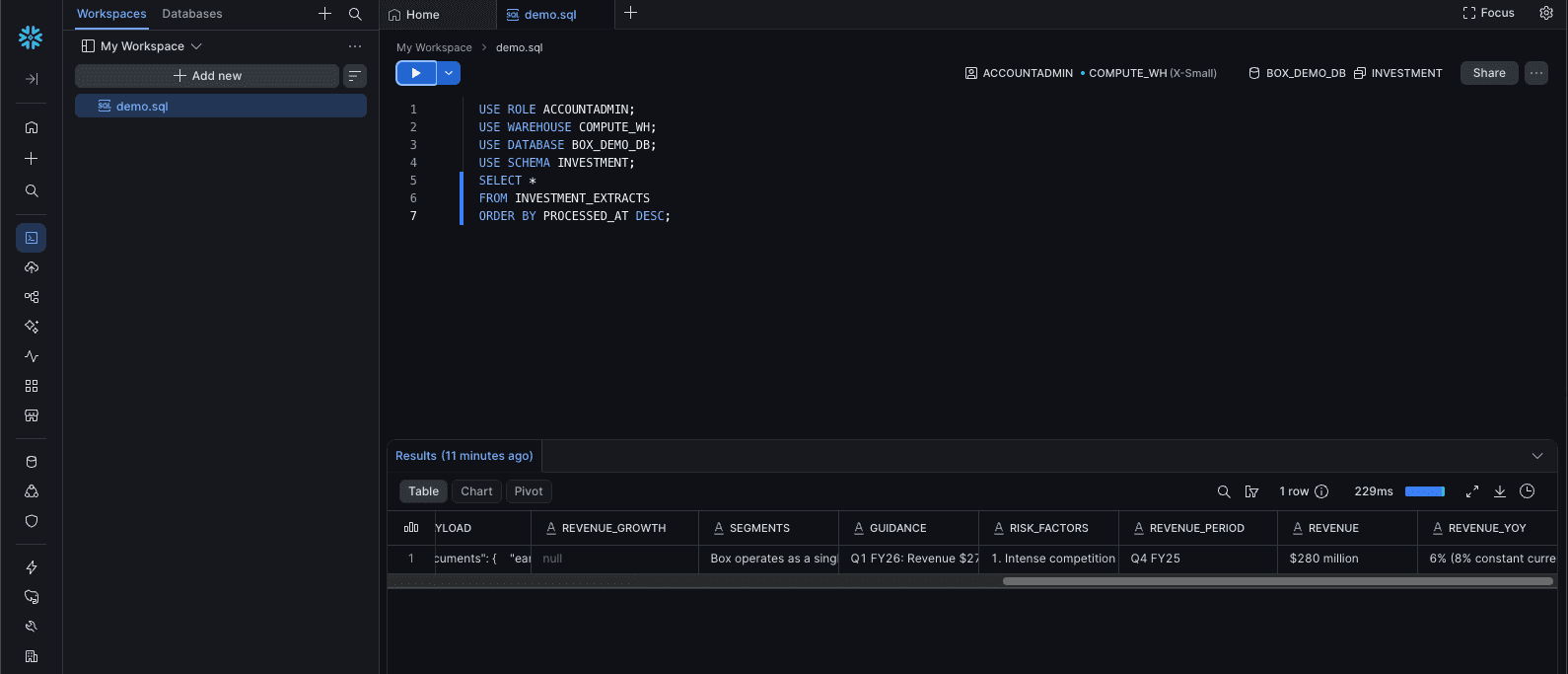
The script creates INVESTMENT_EXTRACTS on the first opt-in run. The normalized memo fields are stored as queryable columns (COMPANY, FISCAL_PERIOD, REVENUE_PERIOD, REVENUE, REVENUE_YOY, SEGMENTS, GUIDANCE, RISK_FACTORS), with Box file IDs and the memo Box shared link alongside them. PAYLOAD is optional, and keeps the full per-document Box Extract responses, confidence scores, and references when you need provenance.
Now go to Snowsight to validate whether the data was currently inserted by running:
USE ROLE ACCOUNTADMIN;
USE WAREHOUSE COMPUTE_WH;
USE DATABASE BOX_DEMO_DB;
USE SCHEMA INVESTMENT;
SELECT *
FROM INVESTMENT_EXTRACTS
ORDER BY PROCESSED_AT DESC;
To inspect the JSON payload run:
SELECT
    COMPANY,
    PAYLOAD:memo:revenue AS memo_revenue,
    PAYLOAD:documents:earnings_deck:confidence_score AS deck_confidence
FROM INVESTMENT_EXTRACTS
ORDER BY PROCESSED_AT DESC
LIMIT 1;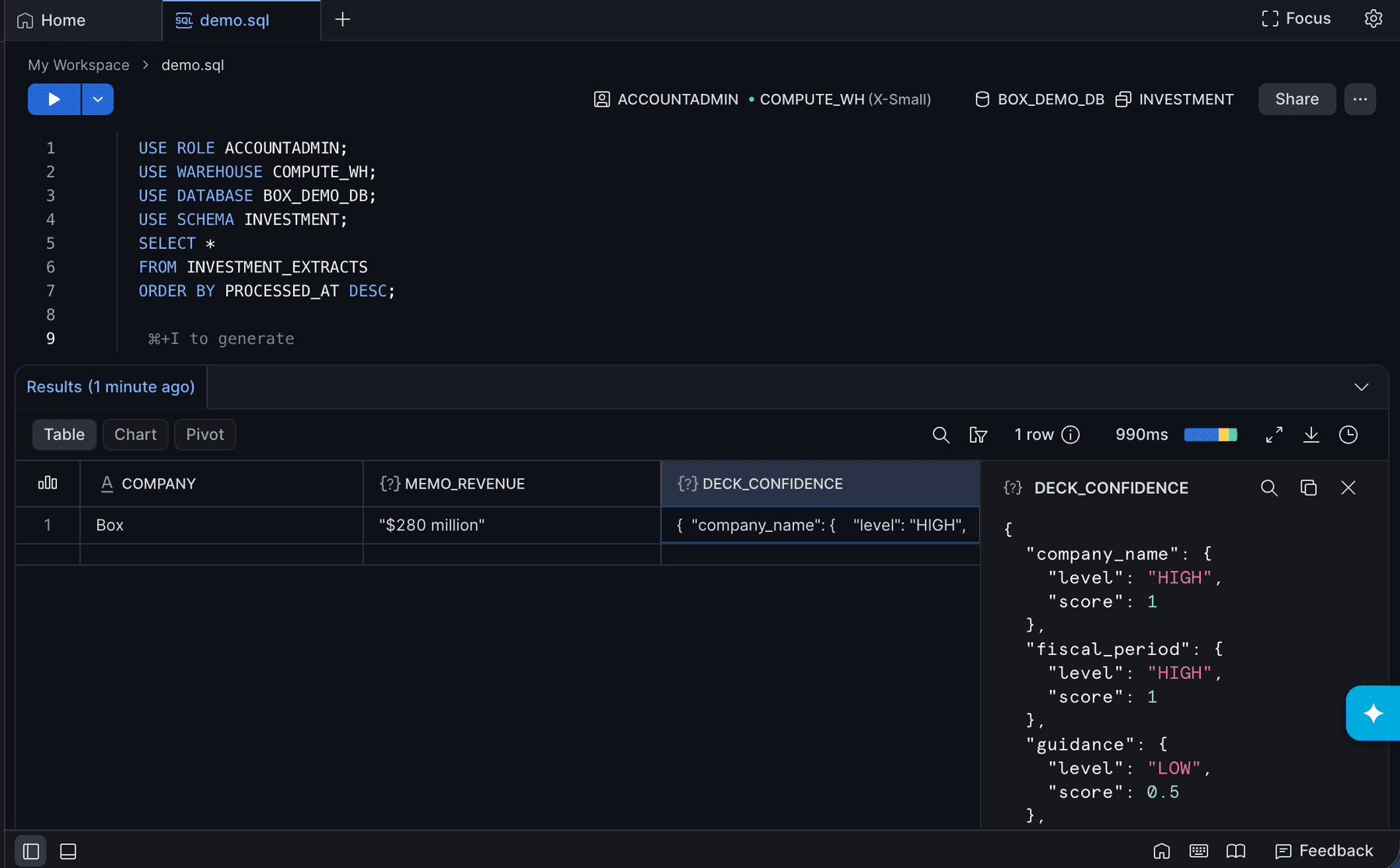
In this demo, each run of --insert-snowflake or --with-snowflake run appends a row; it doesn’t update earlier rows. Snowflake's connector guide documents the connection parameters and MFA option. The account identifier guide explains the orgname-account_name format.
Voilà! ✨ You’ve connected unstructured financial documents to both a decision-ready artifact and a queryable data platform without building a separate parsing pipeline.
Go beyond this demo
This sample is deliberately small, but there are a few natural next steps that can make this workflow polished production-ready:
- Apply a Box metadata template to make extracted fields searchable in Box.
- Send low-confidence fields to a human review queue with Box Tasks API.
- Pull document bounding boxes coordinates to identify the exact source of the information for a human review.
- Replace batch-job polling with Doc Gen webhooks.
- Trigger the workflow when a new filing arrives in a Box folder.
- Add more typed Snowflake columns only for fields you query frequently.
- Compare several reporting periods while preserving each source document and reference.
Note that this demo summarizes information disclosed in source documents. It doesn’t produce an investment recommendation. Always review extracted values and references before using them in a decision or include confidence scores.
This example included a financial statement, but the concept extends beyond the financial industry; the same workflow can be applied to legal cases processing, HR, medical and life sciences. Your options are truly open, but the main idea stays the same: input documents are becoming a source for creating new ones, and are automatically pushed to a structured database, with just one script. We’re curious how you’ll leverage this intelligent document workflow within your organization.