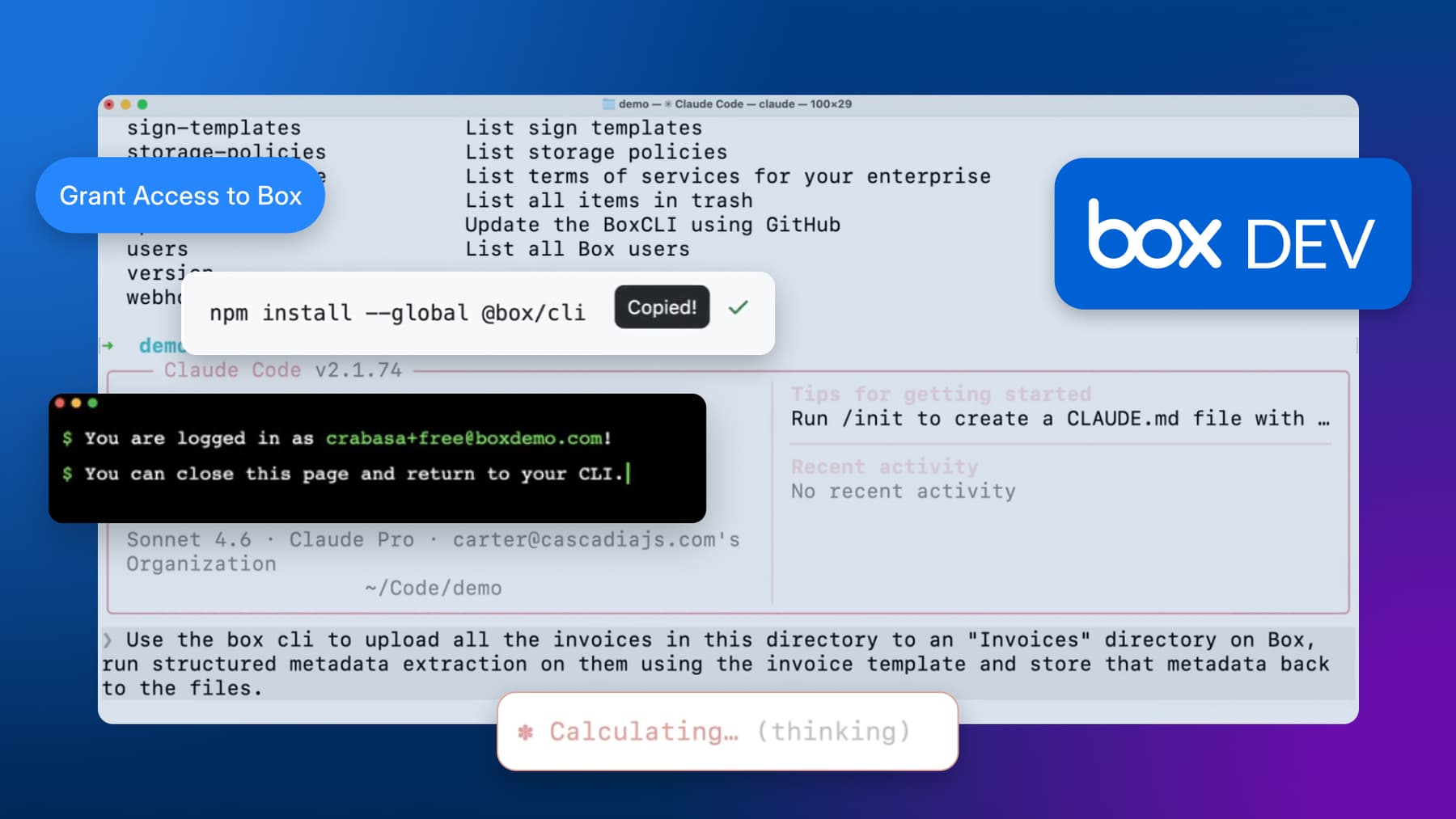
Valmark, a full-service broker-dealer, registered investment advisor and insurance producer group, runs three broker-dealer audit cycles a year, each requiring detailed information from hundreds of transactions. That process used to be manual, multi-step, and time consuming. Valmark’s Commissions team decided to take a different approach by pairing the Box CLI (Command Line Interface) with Claude Code, a terminal-based AI assistant.
The team turned this repeatable process into a self-service AI-first workflow, easy authentication, metadata extraction, and intelligent document processing. This approach lets team members take advantage of natural language commands and minimal setup.
The right context is everything. The Box CLI’s –help functionality gives AI exactly that — no more toggling, copying, hunting, or searching.
Combining the Box CLI and Claude Code
Valmark integrated Claude Code with the Box CLI to build a fully scriptable, repeatable audit data collection. The first step was to enable team members to use the updated tool.
Previously, using the Box CLI required a developer to supply a client ID and client secret, a barrier that kept the tool in the hands of technical staff. With the Box CLI’s built-in OAuth login, any Box user can now authenticate without needing a client secret, making it dramatically easier to deploy and hand off to non-technical team members.
box login

How would you like to authenticate?
[1] Log-in as a Box user (OAuth)
[2] Use a Box Platform app
From natural language prompts to precise CLI commands
One of the most powerful aspects of the integration was how Claude Code used Box CLI’s --help functionality to bridge the gap between natural language and exact API specifications.
For example, when a team member prompted the assistant to “use the Audit metadata template”, Claude Code ran:
box metadata-templates --helpand resolved the reference to the precise Box metadata template identifier:
enterprise_[templateID].auditRecordsThis meant scripts could be written with accuracy from the start with no manual lookup. Claude Code could also pull a sample document to inspect Box's date formatting conventions, ensuring the scripts handled data correctly from day one.
Intelligent document processing with Box AI
Not all Valmark’s documents in Box were text-searchable PDFs. Some were scanned images. The team built a step in the pipeline that detected these files, downloaded them, ran OCR (Optical Character Recognition), and re-uploaded them to Box. This conversion enabled faster downstream analysis in later steps with the Box AI features.
On-the-fly AI extraction
On top of that, Box CLI's AI Extract capability helped this team to instantly retrieve structured data. Rather than pre-defining extraction schemas in the Admin Console, the team used the CLI to run custom, free form extractions on the fly:
"ai:extract",
"--items", f "id={file_id},type=file",
"--prompt","fieldKey1, fieldKey2, fieldKey3, fieldKey4",
"--json"
This allowed Valmark to pull structured, consistently formatted data from documents in real time, ready for downstream processing without any additional configuration.
The results
By combining Box CLI with Claude Code, Valmark transformed a labor-intensive, developer-dependent audit process into a self-service workflow that is repeatable and scriptable: the entire pipeline can be run by the Commissions team without developer involvement. Additionally, Claude's ability to interpret CLI help output and resolve metadata templates eliminates manual lookup steps, saving team members time. Finally, access to structured data from all documents became instant and audit-ready.
Box CLI gave Claude Code the tools to act and gave the Commissions team the ability to run complex audit workflows themselves with natural language prompts, without scripting knowledge or developer dependency.
How to get started with Box CLI and your coding assistant
Valmark's setup required only a Box account, a terminal, a coding assistant, and a single install command. If your team wants to build something similar, here's how to start.
If you don’t have a Box account, try out Box free developer account with 1,000 AI units per month. Next, make sure you have node.js installed.
To get Box CLI running, copy and paste the following command to the terminal window and run it.
npm i @box/cli -gAnd authenticate:
box loginStill not sure how to proceed? Claude Code and most AI coding assistants handle CLI troubleshooting well. Alternatively, if you’re less experienced with terminal usage, be sure to ask for support from your IT team.
For seasoned Box CLI users: be sure to upgrade to the latest version and see what’s new.
If you want to learn more about the setup or possibilities check out our blog post on leveraging Box CLI with Claude Code. It includes a walkthrough of how to set up and run commands just like Valmark is doing in their new AI-first audit pipeline.